
Prerequisites
- At least one task. A task needs a rubric for its runs to get an Evals result.
- At least one treatment. Every project has Raw Agent.
- At least one agent with a model, under Manage → Agents.
- Runs in your organization’s run balance.
Start a new experiment
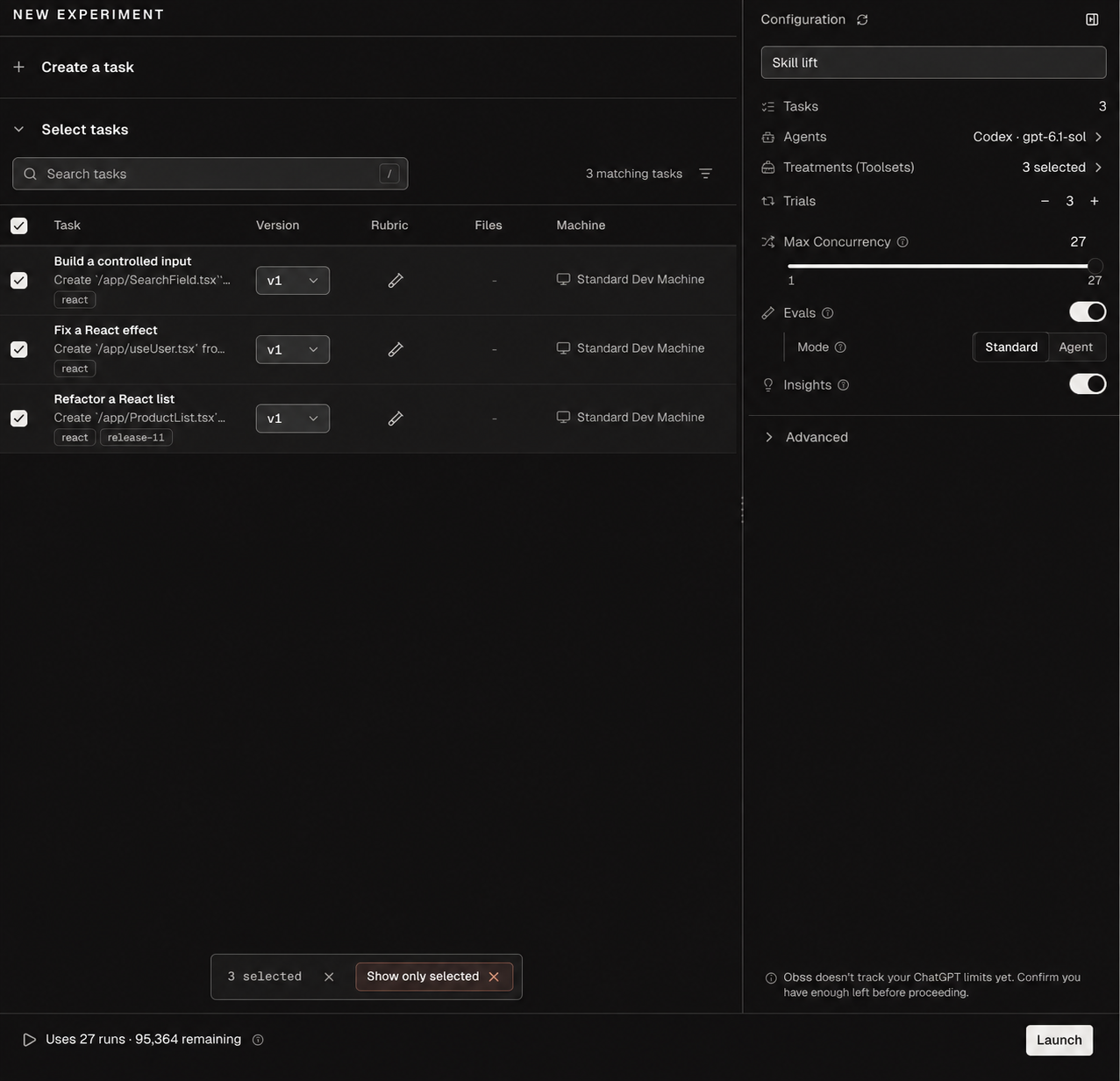
Select New experiment in the sidebar and fill in Experiment name. You can also start from a template on Home, which fills in its tasks, treatments, and agents. Tasks already carry their files and machine, and treatments carry their tools, so in the Configuration panel you only choose what to combine.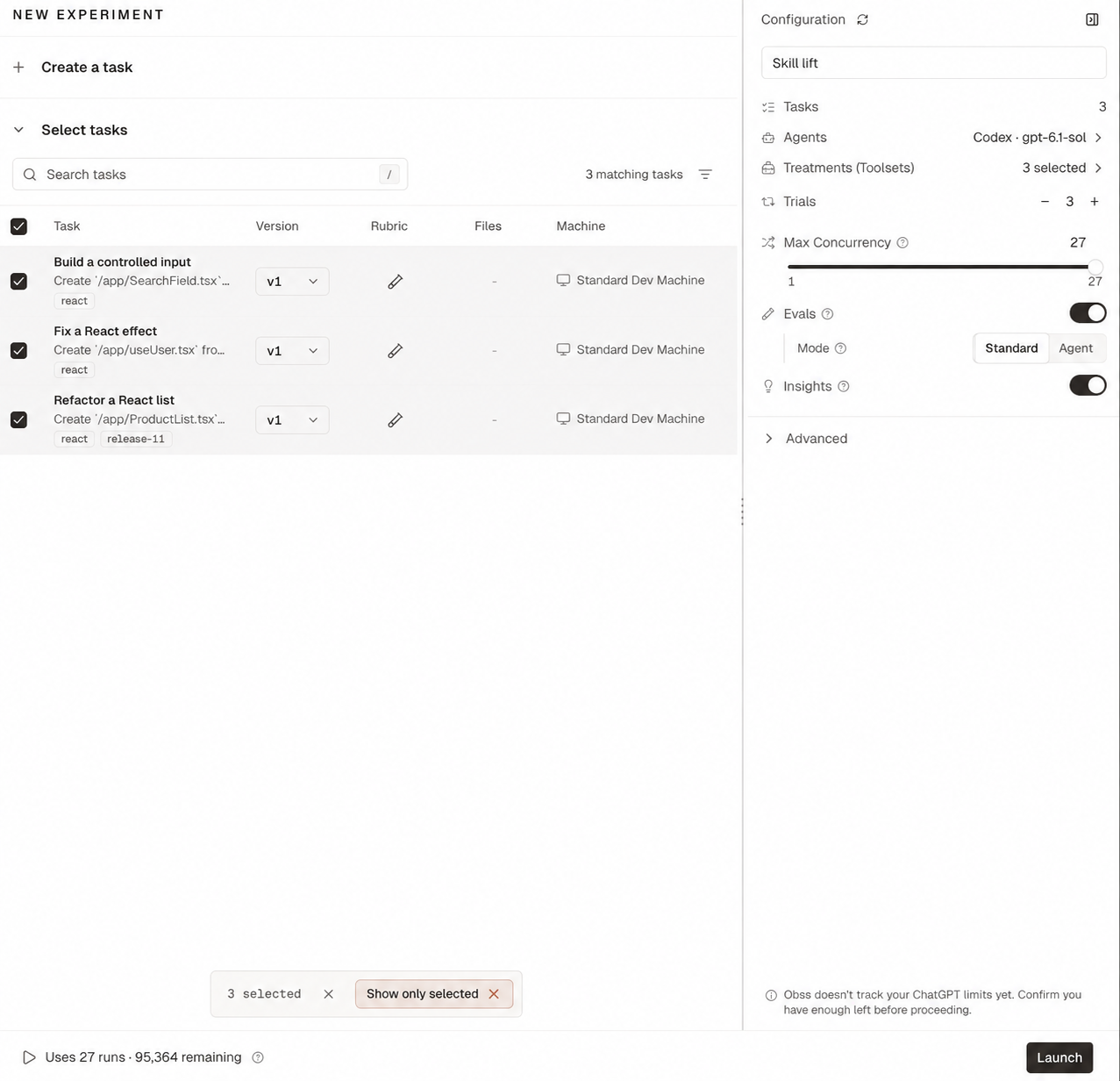
Choose tasks
Select tasks in the task list. Search by name, or use the Tags filter to select all the tasks of a release or an area at once. To create a task without leaving the page, select New task. Each task runs its current version. To run an older version, choose it in the task’s version menu. To compare treatments or agents, select at least 6 tasks, and more if you can. Comparisons needs at least 6 tasks where one side did better, and tied tasks don’t count, however many trials you run.Choose agents
A new experiment selects every built-in agent that has a recommended model. To pick your own, select Clear beside the agent search, then select the agents you want. You need at least one agent to launch. The number beside Clear is the number of agents, so an agent with two models counts once. For each agent, choose a model and an effort level. To compare models, add the same agent again with another model. A new experiment doesn’t select a custom agent for you unless you open New experiment from that agent’s page. A selected custom agent starts on Agent default, and one that is Not tested or Needs attention shows a notice before you launch.Choose treatments and a baseline
Select the treatments to compare under Treatments (Toolsets). A new experiment starts with Raw Agent selected. When you select two or more treatments, a Baseline control appears. Choose the treatment you want to compare the others with. It can be any treatment you selected, and Raw Agent starts as the baseline when it’s selected. Obss saves the baseline with the experiment, and you read each treatment’s lift by comparing it with the baseline in Pass rate and lift.Set trials
Set Trials from 1 to 20. A new experiment starts at 1. Use two or more when you compare treatments or agents, because agents don’t give the same result every time. The footer shows how many runs the experiment uses: tasks × treatments × agents × trials (see What an experiment combines). If your run balance doesn’t have enough, the footer links to where you can add runs.Set Max Concurrency
Max Concurrency limits how many runs are active at once. It starts at the number of runs, and it can’t be higher. Lower it when runs change shared resources through connected MCP servers, CLIs, or other tools. A lower limit helps prevent race conditions, unexpected results, and rate-limit spikes at your model provider. Set it to 1 to run one at a time. Max Concurrency doesn’t apply to Evals or Insights. Obss also applies organization and global limits, so the effective limit can be lower than the value you set. For help choosing a limit or for more capacity, email support@obss.app.Turn on Evals and Insights
Each control needs its models set under Obss AI features. Leave one off now and you can select Run evals or Run insights on the experiment later.
When Evals or Insights is on and your organization has Agent mode for it, choose its Mode:
With Agent chosen, the line under Mode says how many runs the agent will review, and with which model.
Agent mode for Evals and Insights is in private beta. Email support@obss.app to enable it for your organization. See Agent mode.
Override models for this experiment
Open Advanced to choose a different Evals model, Insights model, or Experiment insights model for this experiment only. Default uses your organization’s setting. If your organization has custom instructions, turn on Customize under a feature to replace them for this experiment. Left off, the experiment uses the organization’s instructions, or Obss’s built-in guidance when there are none. In a launch plan from the CLI or the plugin, the role overrides use these names. Omit a role to use the organization’s model.Launch
- Dashboard
- CLI
- Plugin (MCP)
Check the run count in the footer and select Launch. If something blocks the launch, such as a tool that needs values or an agent without a provider, the panel names it and links to the fix.
Launch again
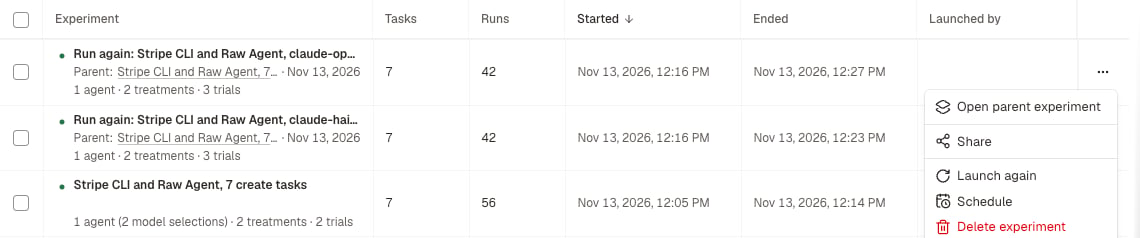
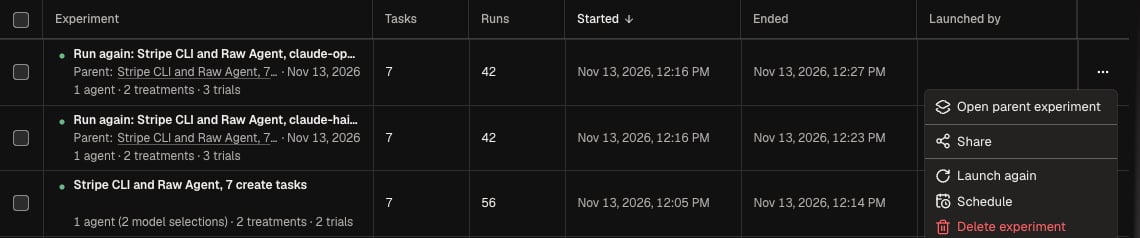
Launch again starts a new experiment with the same name, tasks, treatments, agents, and settings, and uses as many runs as the original planned. It’s on the experiment and in its row menu in All experiments once the experiment is Completed, Needs review, Error, or Cancelled.- Latest versions: each task runs its latest version, and each treatment uses its current saved state. If tasks changed since the experiment ran, the dialog says how many.
- Blockers: the dialog lists anything that blocks the launch, such as a disconnected provider, each with a fix link that opens in a new tab. When you come back, the dialog checks again, and Launch turns on as soon as nothing blocks it.
- Deleted tasks or treatments: Launch again won’t launch, so it never runs a smaller experiment or compares against a different baseline. Use Edit first to choose others.
- Dashboard
- CLI
- Plugin (MCP)
Select Launch again, and then select Launch.
Cancel an experiment
To stop an experiment that is Running, select Cancel experiment on the experiment or in its row menu. It stops unfinished runs, and completed runs stay available. To stop one run, select Cancel run in that run’s ⋯ menu.- Dashboard
- CLI
- Plugin (MCP)
Select Cancel experiment, then confirm.