Create, switch, rename, and delete projects from the dashboard, the CLI, or the plugin.
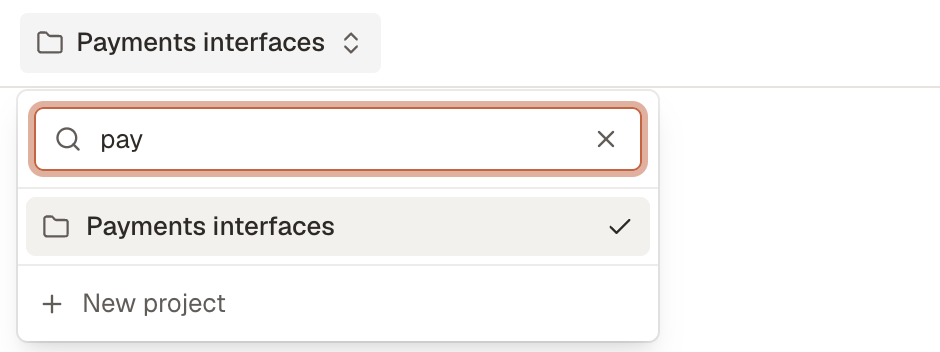
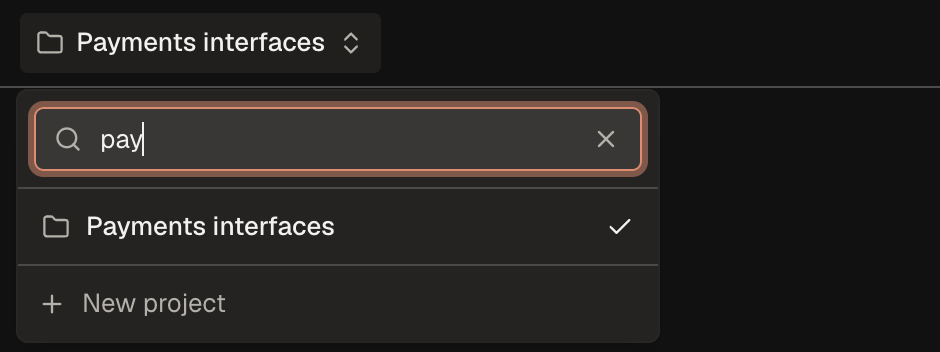
A project holds your tasks, tools, treatments, and experiments, and every member can open it. Model providers, Obss AI feature models, and the run balance belong to the organization, so all projects share them. Choosing a project is step 1 of the setup checklist.There’s no project settings page: use the project switcher in the dashboard header, the CLI, or the plugin. The switcher has New project at the bottom, a search box once you have more than seven projects, and an edit button on each row that opens Rename project.
Create a project
Dashboard
CLI
Plugin (MCP)
Open the project switcher in the dashboard header.
Select New project.
In Create project, enter a Name and select Create project.
To avoid overwriting someone else’s change, pass --expected-updated-at with the value from obss projects inspect. If the project changed since then, the rename fails (obss projects update).
Ask your AI assistant to rename the project. It calls Create or rename a project (manage_project).
Delete a project
Deleting a project permanently removes everything in it: tasks, files, machines, tools, treatments, experiments, schedules, runs, and their Evals and Insights results. Obss first stops running experiments, and the stopped runs don’t count against your run balance.
You can’t undo a deletion, and you can’t delete the organization’s only project.
Dashboard
CLI
Plugin (MCP)
Open the project switcher.
Select the edit button on the project row.
In Rename project, select Delete project.
Type the project name to confirm, then select Delete project.
Preview what the deletion stops and removes, and any blockers:
obss projects delete prj_7d20e6b4 --dry-run
Then delete it. In a terminal, the CLI asks you to confirm. With --output json or outside a terminal, pass --yes.
obss projects delete prj_7d20e6b4
Ask your AI assistant to preview the deletion first. It calls Preview project deletion (preview_delete_project), then Permanently delete a project (delete_project) after you approve it.
{"docsConfig":{"theme":"mint","$schema":"https://mintlify.com/docs.json","name":"Obss","colors":{"primary":"#6851BC","light":"#AA9DF1","dark":"#6851BC"},"logo":{"light":"https://mintcdn.com/obss/OxwxVJJI5_IJIZWI/logo/lockup-light.png?fit=max\u0026auto=format\u0026n=OxwxVJJI5_IJIZWI\u0026q=85\u0026s=e9cd30a8c1d53e4ddb269ee8760d660f","dark":"https://mintcdn.com/obss/OxwxVJJI5_IJIZWI/logo/lockup-dark.png?fit=max\u0026auto=format\u0026n=OxwxVJJI5_IJIZWI\u0026q=85\u0026s=a13c1db4acad4c76044ce999617c8c3e"},"favicon":"https://mintcdn.com/obss/OxwxVJJI5_IJIZWI/logo/mark-light.png?fit=max\u0026auto=format\u0026n=OxwxVJJI5_IJIZWI\u0026q=85\u0026s=5d21dd6fbcef33adb5fe998a6339521d","background":{"color":{"light":"#FFFFFF","dark":"#121113"}},"navbar":{"links":[{"href":"https://obss.app/pricing","label":"Pricing"}],"primary":{"type":"button","label":"Open dashboard","href":"https://app.obss.app"}},"fonts":{"heading":{"family":"Geist","weight":600},"body":{"family":"Geist"}},"icons":{"library":"lucide"},"styling":{"eyebrows":"section","latex":false},"navigation":{"pages":[]}},"deployment":{"deploymentMetadataValue":{"subdomain":"obss","hasAudioNarration":false,"actualSubdomain":"obss","customDomains":["docs.obss.app"],"gitSource":{"type":"github","owner":"obss-inc","repo":"docs","deployBranch":"main","contentDirectory":"","isPrivate":true,"mountPath":"","label":""},"entitlements":{"AI_CHAT":{"status":"DISABLED"}},"buildId":"6afc45f59afc43b421467190","clientVersion":"0.0.4167","searchFilterCounts":[{"language":"default","tag":"Guides","count":45},{"language":"default","tag":"Reference","count":17},{"language":"default","tag":"CLI","count":14},{"language":"default","tag":"Read results","count":9},{"language":"default","tag":"Set up","count":9},{"language":"default","tag":"Get started","count":5},{"language":"default","tag":"Run experiments","count":5},{"language":"default","tag":"Use cases","count":5},{"language":"default","tag":"Operate","count":5},{"language":"default","tag":"Evals and Insights","count":3}]},"assistantConfig":{"enableAskAiButton":false,"enableStarterQuestions":false,"enableContextualStarterQuestions":false,"enableAskAiSearchBar":true},"basePath":"","hasChatPermissions":false,"hasWebMcpPermissions":false,"toggles":[{"name":"kill-isr","enabled":true,"variant":{"name":"disabled","enabled":false,"feature_enabled":true},"impressionData":false},{"name":"custom-rbac-roles","enabled":true,"variant":{"name":"disabled","enabled":false,"feature_enabled":true},"impressionData":false},{"name":"agent-mintlify-slack","enabled":true,"variant":{"name":"disabled","enabled":false,"feature_enabled":true},"impressionData":false},{"name":"agent-integrations-settings","enabled":true,"variant":{"name":"disabled","enabled":false,"feature_enabled":true},"impressionData":false},{"name":"rbac-expansion","enabled":true,"variant":{"name":"disabled","enabled":false,"feature_enabled":true},"impressionData":false},{"name":"automations-pr-grouping","enabled":true,"variant":{"name":"disabled","enabled":false,"feature_enabled":true},"impressionData":false},{"name":"custom-prefix","enabled":true,"variant":{"name":"disabled","enabled":false,"feature_enabled":true},"impressionData":false},{"name":"analytics-v7","enabled":true,"variant":{"name":"disabled","enabled":false,"feature_enabled":true},"impressionData":false},{"name":"user-flows-analytics","enabled":true,"variant":{"name":"disabled","enabled":false,"feature_enabled":true},"impressionData":false},{"name":"no-publish-flow","enabled":true,"variant":{"name":"disabled","enabled":false,"feature_enabled":true},"impressionData":false},{"name":"workos-onboarding","enabled":true,"variant":{"name":"disabled","enabled":false,"feature_enabled":true},"impressionData":false},{"name":"snapshot-serving-live","enabled":true,"variant":{"name":"disabled","enabled":false,"feature_enabled":true},"impressionData":false},{"name":"stripTemperatureMiddleware","enabled":true,"variant":{"name":"disabled","enabled":false,"feature_enabled":true},"impressionData":false},{"name":"support-platform-pylon-zendesk","enabled":true,"variant":{"name":"disabled","enabled":false,"feature_enabled":true},"impressionData":false},{"name":"snapshot-serving","enabled":true,"variant":{"name":"disabled","enabled":false,"feature_enabled":true},"impressionData":false},{"name":"instant-rollback","enabled":true,"variant":{"name":"disabled","enabled":false,"feature_enabled":true},"impressionData":false},{"name":"granular-notifications-server","enabled":true,"variant":{"name":"disabled","enabled":false,"feature_enabled":true},"impressionData":false},{"name":"granular-notifications","enabled":true,"variant":{"name":"disabled","enabled":false,"feature_enabled":true},"impressionData":false},{"name":"automations-fable","enabled":true,"variant":{"name":"disabled","enabled":false,"feature_enabled":true},"impressionData":false},{"name":"fixed-ai-action-pricing","enabled":true,"variant":{"name":"disabled","enabled":false,"feature_enabled":true},"impressionData":false},{"name":"automation-resolve-merge-conflict","enabled":true,"variant":{"name":"disabled","enabled":false,"feature_enabled":true},"impressionData":false},{"name":"scoped-publishing","enabled":true,"variant":{"name":"disabled","enabled":false,"feature_enabled":true},"impressionData":false},{"name":"mintql","enabled":true,"variant":{"name":"disabled","enabled":false,"feature_enabled":true},"impressionData":false},{"name":"page-level-analytics","enabled":true,"variant":{"name":"disabled","enabled":false,"feature_enabled":true},"impressionData":false},{"name":"editor-version-history-v2","enabled":true,"variant":{"name":"disabled","enabled":false,"feature_enabled":true},"impressionData":false},{"name":"billing-page-v2","enabled":true,"variant":{"name":"disabled","enabled":false,"feature_enabled":true},"impressionData":false},{"name":"full-page-search","enabled":true,"variant":{"name":"disabled","enabled":false,"feature_enabled":true},"impressionData":false},{"name":"workspace-projects","enabled":true,"variant":{"name":"disabled","enabled":false,"feature_enabled":true},"impressionData":false},{"name":"assistant-v5","enabled":true,"variant":{"name":"disabled","enabled":false,"feature_enabled":true},"impressionData":false},{"name":"fork-pr-previews","enabled":true,"variant":{"name":"disabled","enabled":false,"feature_enabled":true},"impressionData":false},{"name":"revalidation-jwt","enabled":true,"variant":{"name":"disabled","enabled":false,"feature_enabled":true},"impressionData":false},{"name":"workos-sso-scim","enabled":true,"variant":{"name":"disabled","enabled":false,"feature_enabled":true},"impressionData":false},{"name":"hobby-abuse-scan","enabled":true,"variant":{"name":"disabled","enabled":false,"feature_enabled":true},"impressionData":false},{"name":"dashboard-inbox","enabled":true,"variant":{"name":"disabled","enabled":false,"feature_enabled":true},"impressionData":false},{"name":"workos-signup","enabled":true,"variant":{"name":"disabled","enabled":false,"feature_enabled":true},"impressionData":false},{"name":"turbopuffer-dual-write","enabled":true,"variant":{"name":"disabled","enabled":false,"feature_enabled":true},"impressionData":false},{"name":"workos-enabled","enabled":true,"variant":{"name":"disabled","enabled":false,"feature_enabled":true},"impressionData":false},{"name":"approve-review-flow","enabled":true,"variant":{"name":"disabled","enabled":false,"feature_enabled":true},"impressionData":false},{"name":"editor-metadata","enabled":true,"variant":{"name":"disabled","enabled":false,"feature_enabled":true},"impressionData":false},{"name":"sso-setup-deadline-banner","enabled":true,"variant":{"name":"disabled","enabled":false,"feature_enabled":true},"impressionData":false},{"name":"turbopuffer-serve","enabled":true,"variant":{"name":"disabled","enabled":false,"feature_enabled":true},"impressionData":false},{"name":"live-agents","enabled":true,"variant":{"name":"disabled","enabled":false,"feature_enabled":true},"impressionData":false},{"name":"starter-pricing","enabled":true,"variant":{"name":"treatment","enabled":true,"payload":{"type":"string","value":"treatment"},"feature_enabled":true},"impressionData":false},{"name":"llms-txt-v2","enabled":true,"variant":{"name":"disabled","enabled":false,"feature_enabled":true},"impressionData":false}],"googleFontsInlined":true},"customCss":[],"page":{"pagePath":"setup/projects","slug":"/setup/projects","pageMetadata":{"title":"Projects","description":"Create, switch, rename, and delete projects from the dashboard, the CLI, or the plugin.","keywords":["projects","project switcher","create project","rename project","delete project","current project","prj_"],"href":"/setup/projects"},"description":{"compiledSource":"\"use strict\";\nconst {jsx: _jsx} = arguments[0];\nconst {useMDXComponents: _provideComponents} = arguments[0];\nfunction _createMdxContent(props) {\n const _components = {\n p: \"p\",\n ..._provideComponents(),\n ...props.components\n };\n return _jsx(_components.p, {\n children: \"Create, switch, rename, and delete projects from the dashboard, the CLI, or the plugin.\"\n });\n}\nfunction MDXContent(props = {}) {\n const {wrapper: MDXLayout} = {\n ..._provideComponents(),\n ...props.components\n };\n return MDXLayout ? _jsx(MDXLayout, {\n ...props,\n children: _jsx(_createMdxContent, {\n ...props\n })\n }) : _createMdxContent(props);\n}\nreturn {\n default: MDXContent\n};\n","frontmatter":{},"scope":{}},"pageType":"default","mdx":{"mdxSource":{"compiledSource":"\"use strict\";const{Fragment:_Fragment,jsx:_jsx,jsxs:_jsxs}=arguments[0];const{useMDXComponents:_provideComponents}=arguments[0];function _createMdxContent(props){const _components={a:`a`,code:`code`,li:`li`,ol:`ol`,p:`p`,pre:`pre`,span:`span`,strong:`strong`,tbody:`tbody`,td:`td`,th:`th`,thead:`thead`,tr:`tr`,..._provideComponents(),...props.components},{Card,CardGroup,CodeBlock,Frame,Heading,OptimizedImage,Tab,Table,Tabs,Warning}=_components;if(!Card)_missingMdxReference(`Card`,true);if(!CardGroup)_missingMdxReference(`CardGroup`,true);if(!CodeBlock)_missingMdxReference(`CodeBlock`,true);if(!Frame)_missingMdxReference(`Frame`,true);if(!Heading)_missingMdxReference(`Heading`,true);if(!OptimizedImage)_missingMdxReference(`OptimizedImage`,true);if(!Tab)_missingMdxReference(`Tab`,true);if(!Table)_missingMdxReference(`Table`,true);if(!Tabs)_missingMdxReference(`Tabs`,true);if(!Warning)_missingMdxReference(`Warning`,true);return _jsxs(_Fragment,{children:[_jsxs(_components.p,{children:[`A project holds your tasks, tools, treatments, and experiments, and every member can open it. Model providers, Obss AI feature models, and the run balance belong to the organization, so all projects share them. Choosing a project is step 1 of the `,_jsx(_components.a,{href:`/setup/organization#setup-checklist`,children:`setup checklist`}),`.`]}),`\n`,_jsxs(_components.p,{children:[`There’s no project settings page: use the project switcher in the dashboard header, the CLI, or the plugin. The switcher has `,_jsx(_components.strong,{children:`New project`}),` at the bottom, a search box once you have more than seven projects, and an edit button on each row that opens `,_jsx(_components.strong,{children:`Rename project`}),`.`]}),`\n`,_jsxs(Frame,{children:[_jsx(OptimizedImage,{className:`mint-block dark:mint-hidden`,src:`https://mintcdn.com/obss/YO1ysyUx4SPwBwoz/images/screenshots/project-switcher-light.png?fit=max\u0026auto=format\u0026n=YO1ysyUx4SPwBwoz\u0026q=85\u0026s=2b42b8653e414a43d257a3a5a9f87048`,alt:`Header project switcher open, with the project search box, a matching project, and New project.`,\"data-og-width\":`940`,width:`940`,\"data-og-height\":`352`,height:`352`,\"data-path\":`images/screenshots/project-switcher-light.png`,\"data-optimize\":`true`,\"data-opv\":`3`,srcset:`https://mintcdn.com/obss/YO1ysyUx4SPwBwoz/images/screenshots/project-switcher-light.png?w=280\u0026fit=max\u0026auto=format\u0026n=YO1ysyUx4SPwBwoz\u0026q=85\u0026s=215a72aa8289e9ccc77493cd1d3bb2fd 280w, https://mintcdn.com/obss/YO1ysyUx4SPwBwoz/images/screenshots/project-switcher-light.png?w=560\u0026fit=max\u0026auto=format\u0026n=YO1ysyUx4SPwBwoz\u0026q=85\u0026s=b3d3a746933fd63638a922cb4ebd7729 560w, https://mintcdn.com/obss/YO1ysyUx4SPwBwoz/images/screenshots/project-switcher-light.png?w=840\u0026fit=max\u0026auto=format\u0026n=YO1ysyUx4SPwBwoz\u0026q=85\u0026s=f1be84315a1a33af3c28b6c2ab579caf 840w, https://mintcdn.com/obss/YO1ysyUx4SPwBwoz/images/screenshots/project-switcher-light.png?w=1100\u0026fit=max\u0026auto=format\u0026n=YO1ysyUx4SPwBwoz\u0026q=85\u0026s=dbc026c8690b24bfcc588e373113dc11 1100w, https://mintcdn.com/obss/YO1ysyUx4SPwBwoz/images/screenshots/project-switcher-light.png?w=1650\u0026fit=max\u0026auto=format\u0026n=YO1ysyUx4SPwBwoz\u0026q=85\u0026s=fdea5c374fc2c2b325d0275d2ac95981 1650w, https://mintcdn.com/obss/YO1ysyUx4SPwBwoz/images/screenshots/project-switcher-light.png?w=2500\u0026fit=max\u0026auto=format\u0026n=YO1ysyUx4SPwBwoz\u0026q=85\u0026s=42ad864e2593714760fb7fdc33baedf0 2500w`}),_jsx(OptimizedImage,{className:`mint-hidden dark:mint-block`,src:`https://mintcdn.com/obss/YO1ysyUx4SPwBwoz/images/screenshots/project-switcher-dark.png?fit=max\u0026auto=format\u0026n=YO1ysyUx4SPwBwoz\u0026q=85\u0026s=b9a85c5e298982bc2adf0b49ab7ce83f`,alt:`Header project switcher open, with the project search box, a matching project, and New project.`,\"data-og-width\":`940`,width:`940`,\"data-og-height\":`352`,height:`352`,\"data-path\":`images/screenshots/project-switcher-dark.png`,\"data-optimize\":`true`,\"data-opv\":`3`,srcset:`https://mintcdn.com/obss/YO1ysyUx4SPwBwoz/images/screenshots/project-switcher-dark.png?w=280\u0026fit=max\u0026auto=format\u0026n=YO1ysyUx4SPwBwoz\u0026q=85\u0026s=f0fbd716a7cf0ef4aff12847c6a171f2 280w, https://mintcdn.com/obss/YO1ysyUx4SPwBwoz/images/screenshots/project-switcher-dark.png?w=560\u0026fit=max\u0026auto=format\u0026n=YO1ysyUx4SPwBwoz\u0026q=85\u0026s=68efa9abef6c0c341fc4774f001aa88c 560w, https://mintcdn.com/obss/YO1ysyUx4SPwBwoz/images/screenshots/project-switcher-dark.png?w=840\u0026fit=max\u0026auto=format\u0026n=YO1ysyUx4SPwBwoz\u0026q=85\u0026s=1798fbd0d975b41b60d9f703c0f01ed4 840w, https://mintcdn.com/obss/YO1ysyUx4SPwBwoz/images/screenshots/project-switcher-dark.png?w=1100\u0026fit=max\u0026auto=format\u0026n=YO1ysyUx4SPwBwoz\u0026q=85\u0026s=03c13ede17b5763799c486424bb882c5 1100w, https://mintcdn.com/obss/YO1ysyUx4SPwBwoz/images/screenshots/project-switcher-dark.png?w=1650\u0026fit=max\u0026auto=format\u0026n=YO1ysyUx4SPwBwoz\u0026q=85\u0026s=caad8cd52922b9963c70725083763e11 1650w, https://mintcdn.com/obss/YO1ysyUx4SPwBwoz/images/screenshots/project-switcher-dark.png?w=2500\u0026fit=max\u0026auto=format\u0026n=YO1ysyUx4SPwBwoz\u0026q=85\u0026s=3bd50d9a04143499d8bb1615f49c4b45 2500w`})]}),`\n`,_jsx(Heading,{level:`2`,id:`create-a-project`,children:`Create a project`}),`\n`,_jsxs(Tabs,{children:[_jsx(Tab,{title:`Dashboard`,id:`dashboard`,children:_jsxs(_components.ol,{children:[`\n`,_jsx(_components.li,{children:`Open the project switcher in the dashboard header.`}),`\n`,_jsxs(_components.li,{children:[`Select `,_jsx(_components.strong,{children:`New project`}),`.`]}),`\n`,_jsxs(_components.li,{children:[`In `,_jsx(_components.strong,{children:`Create project`}),`, enter a `,_jsx(_components.strong,{children:`Name`}),` and select `,_jsx(_components.strong,{children:`Create project`}),`.`]}),`\n`]})}),_jsxs(Tab,{title:`CLI`,id:`cli`,children:[_jsx(CodeBlock,{filename:``,numberOfLines:`1`,language:`shellscript`,children:_jsx(_components.pre,{className:`shiki shiki-themes github-light-default dark-plus`,style:{backgroundColor:`#ffffff`,\"--shiki-dark-bg\":`#0B0C0E`,color:`#1f2328`,\"--shiki-dark\":`#D4D4D4`},language:`shellscript`,children:_jsxs(_components.code,{language:`shellscript`,numberOfLines:`1`,children:[_jsxs(_components.span,{className:`line`,children:[_jsx(_components.span,{style:{color:`#953800`,\"--shiki-dark\":`#DCDCAA`},children:`obss`}),_jsx(_components.span,{style:{color:`#0A3069`,\"--shiki-dark\":`#CE9178`},children:` projects`}),_jsx(_components.span,{style:{color:`#0A3069`,\"--shiki-dark\":`#CE9178`},children:` create`}),_jsx(_components.span,{style:{color:`#0550AE`,\"--shiki-dark\":`#569CD6`},children:` --name`}),_jsx(_components.span,{style:{color:`#0A3069`,\"--shiki-dark\":`#CE9178`},children:` \"Checkout agents\"`}),_jsx(_components.span,{style:{color:`#0550AE`,\"--shiki-dark\":`#569CD6`},children:` --mutation-attempt-id`}),_jsx(_components.span,{style:{color:`#0A3069`,\"--shiki-dark\":`#CE9178`},children:` 4c1e2f0a-create-checkout`})]}),`\n`]})})}),_jsxs(_components.p,{children:[`Retry with the same `,_jsx(_components.code,{children:`--mutation-attempt-id`}),` to avoid creating a second project (`,_jsx(_components.a,{href:`/cli/projects#obss-projects-create`,children:_jsx(_components.code,{children:`obss projects create`})}),`).`]})]}),_jsxs(Tab,{title:`Plugin (MCP)`,id:`plugin-mcp`,children:[_jsxs(_components.p,{children:[`Ask your AI assistant to create the project. It calls `,_jsx(_components.strong,{children:`Create or rename a project`}),` (`,_jsx(_components.a,{href:`/mcp-server/tools#manage_project`,children:_jsx(_components.code,{children:`manage_project`})}),`).`]}),_jsx(CodeBlock,{filename:``,numberOfLines:`2`,language:`text`,children:_jsx(_components.pre,{className:`shiki shiki-themes github-light-default dark-plus`,style:{backgroundColor:`#ffffff`,\"--shiki-dark-bg\":`#0B0C0E`,color:`#1f2328`,\"--shiki-dark\":`#D4D4D4`},language:`text`,children:_jsxs(_components.code,{language:`text`,numberOfLines:`2`,children:[_jsx(_components.span,{className:`line`,children:_jsx(_components.span,{children:`Create an Obss project named \"Checkout agents\".`})}),`\n`,_jsx(_components.span,{className:`line`,children:_jsx(_components.span,{})})]})})})]})]}),`\n`,_jsx(Heading,{level:`2`,id:`switch-projects`,children:`Switch projects`}),`\n`,_jsx(_components.p,{children:`The dashboard and the CLI each remember a current project. The plugin has no current project, so each tool call names its project.`}),`\n`,_jsxs(Tabs,{children:[_jsx(Tab,{title:`Dashboard`,id:`dashboard-2`,children:_jsxs(_components.p,{children:[`Select a project in the project switcher. The `,_jsx(_components.strong,{children:`Manage`}),` pages, experiments, and Ask Obss use it.`]})}),_jsxs(Tab,{title:`CLI`,id:`cli-2`,children:[_jsx(CodeBlock,{filename:``,numberOfLines:`3`,language:`shellscript`,children:_jsx(_components.pre,{className:`shiki shiki-themes github-light-default dark-plus`,style:{backgroundColor:`#ffffff`,\"--shiki-dark-bg\":`#0B0C0E`,color:`#1f2328`,\"--shiki-dark\":`#D4D4D4`},language:`shellscript`,children:_jsxs(_components.code,{language:`shellscript`,numberOfLines:`3`,children:[_jsxs(_components.span,{className:`line`,children:[_jsx(_components.span,{style:{color:`#953800`,\"--shiki-dark\":`#DCDCAA`},children:`obss`}),_jsx(_components.span,{style:{color:`#0A3069`,\"--shiki-dark\":`#CE9178`},children:` projects`}),_jsx(_components.span,{style:{color:`#0A3069`,\"--shiki-dark\":`#CE9178`},children:` list`})]}),`\n`,_jsxs(_components.span,{className:`line`,children:[_jsx(_components.span,{style:{color:`#953800`,\"--shiki-dark\":`#DCDCAA`},children:`obss`}),_jsx(_components.span,{style:{color:`#0A3069`,\"--shiki-dark\":`#CE9178`},children:` projects`}),_jsx(_components.span,{style:{color:`#0A3069`,\"--shiki-dark\":`#CE9178`},children:` use`}),_jsx(_components.span,{style:{color:`#0A3069`,\"--shiki-dark\":`#CE9178`},children:` prj_7d20e6b4`})]}),`\n`,_jsxs(_components.span,{className:`line`,children:[_jsx(_components.span,{style:{color:`#953800`,\"--shiki-dark\":`#DCDCAA`},children:`obss`}),_jsx(_components.span,{style:{color:`#0A3069`,\"--shiki-dark\":`#CE9178`},children:` projects`}),_jsx(_components.span,{style:{color:`#0A3069`,\"--shiki-dark\":`#CE9178`},children:` current`})]}),`\n`]})})}),_jsxs(_components.p,{children:[_jsx(_components.code,{children:`projects use`}),` remembers the project for later commands. To use another project for one command, pass `,_jsx(_components.code,{children:`--project-id`}),` (`,_jsx(_components.a,{href:`/cli/projects#obss-projects-use`,children:_jsx(_components.code,{children:`obss projects use`})}),`).`]})]}),_jsx(Tab,{title:`Plugin (MCP)`,id:`plugin-mcp-2`,children:_jsxs(_components.p,{children:[`Your AI assistant calls `,_jsx(_components.strong,{children:`Get the organization and its projects`}),` (`,_jsx(_components.a,{href:`/mcp-server/tools#get_project_context`,children:_jsx(_components.code,{children:`get_project_context`})}),`), then names the project in each call.`]})})]}),`\n`,_jsx(Heading,{level:`2`,id:`rename-a-project`,children:`Rename a project`}),`\n`,_jsxs(Tabs,{children:[_jsx(Tab,{title:`Dashboard`,id:`dashboard-3`,children:_jsxs(_components.ol,{children:[`\n`,_jsx(_components.li,{children:`Open the project switcher.`}),`\n`,_jsx(_components.li,{children:`Select the edit button on the project row.`}),`\n`,_jsxs(_components.li,{children:[`In `,_jsx(_components.strong,{children:`Rename project`}),`, edit `,_jsx(_components.strong,{children:`Project name`}),` (80 characters or fewer) and select `,_jsx(_components.strong,{children:`Save changes`}),`.`]}),`\n`]})}),_jsxs(Tab,{title:`CLI`,id:`cli-3`,children:[_jsx(CodeBlock,{filename:``,numberOfLines:`1`,language:`shellscript`,children:_jsx(_components.pre,{className:`shiki shiki-themes github-light-default dark-plus`,style:{backgroundColor:`#ffffff`,\"--shiki-dark-bg\":`#0B0C0E`,color:`#1f2328`,\"--shiki-dark\":`#D4D4D4`},language:`shellscript`,children:_jsxs(_components.code,{language:`shellscript`,numberOfLines:`1`,children:[_jsxs(_components.span,{className:`line`,children:[_jsx(_components.span,{style:{color:`#953800`,\"--shiki-dark\":`#DCDCAA`},children:`obss`}),_jsx(_components.span,{style:{color:`#0A3069`,\"--shiki-dark\":`#CE9178`},children:` projects`}),_jsx(_components.span,{style:{color:`#0A3069`,\"--shiki-dark\":`#CE9178`},children:` update`}),_jsx(_components.span,{style:{color:`#0A3069`,\"--shiki-dark\":`#CE9178`},children:` prj_7d20e6b4`}),_jsx(_components.span,{style:{color:`#0550AE`,\"--shiki-dark\":`#569CD6`},children:` --name`}),_jsx(_components.span,{style:{color:`#0A3069`,\"--shiki-dark\":`#CE9178`},children:` \"Checkout agents (Q3)\"`})]}),`\n`]})})}),_jsxs(_components.p,{children:[`To avoid overwriting someone else’s change, pass `,_jsx(_components.code,{children:`--expected-updated-at`}),` with the value from `,_jsx(_components.code,{children:`obss projects inspect`}),`. If the project changed since then, the rename fails (`,_jsx(_components.a,{href:`/cli/projects#obss-projects-update`,children:_jsx(_components.code,{children:`obss projects update`})}),`).`]})]}),_jsx(Tab,{title:`Plugin (MCP)`,id:`plugin-mcp-3`,children:_jsxs(_components.p,{children:[`Ask your AI assistant to rename the project. It calls `,_jsx(_components.strong,{children:`Create or rename a project`}),` (`,_jsx(_components.a,{href:`/mcp-server/tools#manage_project`,children:_jsx(_components.code,{children:`manage_project`})}),`).`]})})]}),`\n`,_jsx(Heading,{level:`2`,id:`delete-a-project`,children:`Delete a project`}),`\n`,_jsx(_components.p,{children:`Deleting a project permanently removes everything in it: tasks, files, machines, tools, treatments, experiments, schedules, runs, and their Evals and Insights results. Obss first stops running experiments, and the stopped runs don’t count against your run balance.`}),`\n`,_jsx(Warning,{children:_jsx(_components.p,{children:`You can’t undo a deletion, and you can’t delete the organization’s only project.`})}),`\n`,_jsxs(Tabs,{children:[_jsx(Tab,{title:`Dashboard`,id:`dashboard-4`,children:_jsxs(_components.ol,{children:[`\n`,_jsx(_components.li,{children:`Open the project switcher.`}),`\n`,_jsx(_components.li,{children:`Select the edit button on the project row.`}),`\n`,_jsxs(_components.li,{children:[`In `,_jsx(_components.strong,{children:`Rename project`}),`, select `,_jsx(_components.strong,{children:`Delete project`}),`.`]}),`\n`,_jsxs(_components.li,{children:[`Type the project name to confirm, then select `,_jsx(_components.strong,{children:`Delete project`}),`.`]}),`\n`]})}),_jsxs(Tab,{title:`CLI`,id:`cli-4`,children:[_jsx(_components.p,{children:`Preview what the deletion stops and removes, and any blockers:`}),_jsx(CodeBlock,{filename:``,numberOfLines:`1`,language:`shellscript`,children:_jsx(_components.pre,{className:`shiki shiki-themes github-light-default dark-plus`,style:{backgroundColor:`#ffffff`,\"--shiki-dark-bg\":`#0B0C0E`,color:`#1f2328`,\"--shiki-dark\":`#D4D4D4`},language:`shellscript`,children:_jsxs(_components.code,{language:`shellscript`,numberOfLines:`1`,children:[_jsxs(_components.span,{className:`line`,children:[_jsx(_components.span,{style:{color:`#953800`,\"--shiki-dark\":`#DCDCAA`},children:`obss`}),_jsx(_components.span,{style:{color:`#0A3069`,\"--shiki-dark\":`#CE9178`},children:` projects`}),_jsx(_components.span,{style:{color:`#0A3069`,\"--shiki-dark\":`#CE9178`},children:` delete`}),_jsx(_components.span,{style:{color:`#0A3069`,\"--shiki-dark\":`#CE9178`},children:` prj_7d20e6b4`}),_jsx(_components.span,{style:{color:`#0550AE`,\"--shiki-dark\":`#569CD6`},children:` --dry-run`})]}),`\n`]})})}),_jsxs(_components.p,{children:[`Then delete it. In a terminal, the CLI asks you to confirm. With `,_jsx(_components.code,{children:`--output json`}),` or outside a terminal, pass `,_jsx(_components.code,{children:`--yes`}),`.`]}),_jsx(CodeBlock,{filename:``,numberOfLines:`1`,language:`shellscript`,children:_jsx(_components.pre,{className:`shiki shiki-themes github-light-default dark-plus`,style:{backgroundColor:`#ffffff`,\"--shiki-dark-bg\":`#0B0C0E`,color:`#1f2328`,\"--shiki-dark\":`#D4D4D4`},language:`shellscript`,children:_jsxs(_components.code,{language:`shellscript`,numberOfLines:`1`,children:[_jsxs(_components.span,{className:`line`,children:[_jsx(_components.span,{style:{color:`#953800`,\"--shiki-dark\":`#DCDCAA`},children:`obss`}),_jsx(_components.span,{style:{color:`#0A3069`,\"--shiki-dark\":`#CE9178`},children:` projects`}),_jsx(_components.span,{style:{color:`#0A3069`,\"--shiki-dark\":`#CE9178`},children:` delete`}),_jsx(_components.span,{style:{color:`#0A3069`,\"--shiki-dark\":`#CE9178`},children:` prj_7d20e6b4`})]}),`\n`]})})})]}),_jsx(Tab,{title:`Plugin (MCP)`,id:`plugin-mcp-4`,children:_jsxs(_components.p,{children:[`Ask your AI assistant to preview the deletion first. It calls `,_jsx(_components.strong,{children:`Preview project deletion`}),` (`,_jsx(_components.a,{href:`/mcp-server/tools#preview_delete_project`,children:_jsx(_components.code,{children:`preview_delete_project`})}),`), then `,_jsx(_components.strong,{children:`Permanently delete a project`}),` (`,_jsx(_components.a,{href:`/mcp-server/tools#delete_project`,children:_jsx(_components.code,{children:`delete_project`})}),`) after you approve it.`]})})]}),`\n`,_jsx(Heading,{level:`2`,id:`from-the-cli-and-the-plugin`,children:`From the CLI and the plugin`}),`\n`,_jsxs(Table,{children:[_jsx(_components.thead,{children:_jsxs(_components.tr,{children:[_jsx(_components.th,{children:`Task`}),_jsx(_components.th,{children:`CLI`}),_jsx(_components.th,{children:`Plugin (MCP)`})]})}),_jsxs(_components.tbody,{children:[_jsxs(_components.tr,{children:[_jsx(_components.td,{children:`List projects and show the current one`}),_jsx(_components.td,{children:_jsx(_components.a,{href:`/cli/projects#obss-projects-list`,children:_jsx(_components.code,{children:`obss projects list`})})}),_jsx(_components.td,{children:_jsx(_components.a,{href:`/mcp-server/tools#get_project_context`,children:_jsx(_components.code,{children:`get_project_context`})})})]}),_jsxs(_components.tr,{children:[_jsx(_components.td,{children:`Read one project`}),_jsx(_components.td,{children:_jsx(_components.a,{href:`/cli/projects#obss-projects-inspect`,children:_jsx(_components.code,{children:`obss projects inspect`})})}),_jsx(_components.td,{children:_jsx(_components.a,{href:`/mcp-server/tools#get_project_context`,children:_jsx(_components.code,{children:`get_project_context`})})})]}),_jsxs(_components.tr,{children:[_jsx(_components.td,{children:`Remember a project for later commands`}),_jsx(_components.td,{children:_jsx(_components.a,{href:`/cli/projects#obss-projects-use`,children:_jsx(_components.code,{children:`obss projects use`})})}),_jsx(_components.td,{children:`Not needed: each call names its project`})]}),_jsxs(_components.tr,{children:[_jsx(_components.td,{children:`Create a project`}),_jsx(_components.td,{children:_jsx(_components.a,{href:`/cli/projects#obss-projects-create`,children:_jsx(_components.code,{children:`obss projects create`})})}),_jsx(_components.td,{children:_jsx(_components.a,{href:`/mcp-server/tools#manage_project`,children:_jsx(_components.code,{children:`manage_project`})})})]}),_jsxs(_components.tr,{children:[_jsx(_components.td,{children:`Rename a project`}),_jsx(_components.td,{children:_jsx(_components.a,{href:`/cli/projects#obss-projects-update`,children:_jsx(_components.code,{children:`obss projects update`})})}),_jsx(_components.td,{children:_jsx(_components.a,{href:`/mcp-server/tools#manage_project`,children:_jsx(_components.code,{children:`manage_project`})})})]}),_jsxs(_components.tr,{children:[_jsx(_components.td,{children:`Preview a deletion`}),_jsx(_components.td,{children:_jsx(_components.a,{href:`/cli/projects#obss-projects-delete`,children:_jsx(_components.code,{children:`obss projects delete --dry-run`})})}),_jsx(_components.td,{children:_jsx(_components.a,{href:`/mcp-server/tools#preview_delete_project`,children:_jsx(_components.code,{children:`preview_delete_project`})})})]}),_jsxs(_components.tr,{children:[_jsx(_components.td,{children:`Delete a project`}),_jsx(_components.td,{children:_jsx(_components.a,{href:`/cli/projects#obss-projects-delete`,children:_jsx(_components.code,{children:`obss projects delete`})})}),_jsx(_components.td,{children:_jsx(_components.a,{href:`/mcp-server/tools#delete_project`,children:_jsx(_components.code,{children:`delete_project`})})})]})]})]}),`\n`,_jsx(Heading,{level:`2`,id:`next-steps`,children:`Next steps`}),`\n`,_jsxs(CardGroup,{cols:2,children:[_jsx(Card,{title:`Model providers`,icon:`key-round`,href:`/setup/model-providers`,children:_jsx(_components.p,{children:`Step 2: connect the models your agents use.`})}),_jsx(Card,{title:`Set up your organization`,icon:`building-2`,href:`/setup/organization#setup-checklist`,children:_jsx(_components.p,{children:`See every setup step.`})}),_jsx(Card,{title:`obss projects`,icon:`square-terminal`,href:`/cli/projects`,children:_jsx(_components.p,{children:`Look up every projects command and flag.`})})]})]})}function MDXContent(props={}){const{wrapper:MDXLayout}={..._provideComponents(),...props.components};return MDXLayout?_jsx(MDXLayout,{...props,children:_jsx(_createMdxContent,{...props})}):_createMdxContent(props)}return{default:MDXContent};function _missingMdxReference(id,component){throw new Error(`Expected `+(component?`component`:`object`)+\" `\"+id+\"` to be defined: you likely forgot to import, pass, or provide it.\")}","frontmatter":{},"scope":{"config":{},"pageMetadata":{"title":"Projects","description":"Create, switch, rename, and delete projects from the dashboard, the CLI, or the plugin.","keywords":["projects","project switcher","create project","rename project","delete project","current project","prj_"],"href":"/setup/projects"}}},"mdxSourceWithNoJs":null},"mdxExtracts":{"tableOfContents":[{"title":"Create a project","slug":"create-a-project","depth":2,"children":[]},{"title":"Switch projects","slug":"switch-projects","depth":2,"children":[]},{"title":"Rename a project","slug":"rename-a-project","depth":2,"children":[]},{"title":"Delete a project","slug":"delete-a-project","depth":2,"children":[]},{"title":"From the CLI and the plugin","slug":"from-the-cli-and-the-plugin","depth":2,"children":[]},{"title":"Next steps","slug":"next-steps","depth":2,"children":[]}],"codeExamples":{}},"jsLinks":[],"dynamicCss":".mint-block {\n display: block\n}\n.mint-hidden {\n display: none\n}\n.dark\\:mint-block:is(.dark *) {\n display: block\n}\n.dark\\:mint-hidden:is(.dark *) {\n display: none\n}","subdomain":"obss","siteName":"Obss","title":"Projects - Obss","navMaps":{"firstHrefInVersion":{},"firstHrefInLanguage":{}},"lastModified":"2026-11-14T21:14:57.643Z","originalFileLocation":"setup/projects.mdx"},"headHtml":"\u003cscript data-mint-head>(function(){var d=document.documentElement,p=null;if(!p){try{p=localStorage.getItem(\"isDarkMode\")}catch(e){}if(p==='true')p='dark';else if(p==='false')p='light';if(p!=='light'\u0026\u0026p!=='dark'\u0026\u0026p!=='system')p=\"system\"}var r=p==='system'?(matchMedia(\"(prefers-color-scheme: dark)\").matches?'dark':'light'):p;d.classList.remove(r==='dark'?'light':'dark');d.classList.add(r);d.setAttribute(\"data-theme-preference\",p)})();\u003c/script>\u003cmeta data-mint-head name=\"description\" content=\"Create, switch, rename, and delete projects from the dashboard, the CLI, or the plugin.\">\u003cmeta data-mint-head name=\"application-name\" content=\"Obss\">\u003cmeta data-mint-head name=\"generator\" content=\"Mintlify\">\u003clink data-mint-head rel=\"icon\" type=\"image/png\" sizes=\"192x192\" href=\"/mintlify-assets/_mintlify/favicons/obss/JyNACBFVoy-5AWdb/_generated/favicon/android-chrome-192x192.png\" media=\"(prefers-color-scheme: light)\">\u003clink data-mint-head rel=\"apple-touch-icon\" type=\"image/png\" sizes=\"180x180\" href=\"/mintlify-assets/_mintlify/favicons/obss/JyNACBFVoy-5AWdb/_generated/favicon/apple-touch-icon.png\">\u003clink data-mint-head rel=\"icon\" type=\"image/png\" sizes=\"16x16\" href=\"/mintlify-assets/_mintlify/favicons/obss/JyNACBFVoy-5AWdb/_generated/favicon/favicon-16x16.png\" media=\"(prefers-color-scheme: light)\">\u003clink data-mint-head rel=\"icon\" type=\"image/png\" sizes=\"32x32\" href=\"/mintlify-assets/_mintlify/favicons/obss/JyNACBFVoy-5AWdb/_generated/favicon/favicon-32x32.png\" media=\"(prefers-color-scheme: light)\">\u003clink data-mint-head rel=\"shortcut icon\" type=\"image/x-icon\" href=\"/mintlify-assets/_mintlify/favicons/obss/JyNACBFVoy-5AWdb/_generated/favicon/favicon.ico?v=obss3" media=\"(prefers-color-scheme: light)\">\u003clink data-mint-head rel=\"icon\" type=\"image/png\" sizes=\"192x192\" href=\"/mintlify-assets/_mintlify/favicons/obss/JyNACBFVoy-5AWdb/_generated/favicon-dark/android-chrome-192x192.png\" media=\"(prefers-color-scheme: dark)\">\u003clink data-mint-head rel=\"icon\" type=\"image/png\" sizes=\"16x16\" href=\"/mintlify-assets/_mintlify/favicons/obss/JyNACBFVoy-5AWdb/_generated/favicon-dark/favicon-16x16.png\" media=\"(prefers-color-scheme: dark)\">\u003clink data-mint-head rel=\"icon\" type=\"image/png\" sizes=\"32x32\" href=\"/mintlify-assets/_mintlify/favicons/obss/JyNACBFVoy-5AWdb/_generated/favicon-dark/favicon-32x32.png\" media=\"(prefers-color-scheme: dark)\">\u003clink data-mint-head rel=\"shortcut icon\" type=\"image/x-icon\" href=\"/mintlify-assets/_mintlify/favicons/obss/JyNACBFVoy-5AWdb/_generated/favicon-dark/favicon.ico?v=obss3" media=\"(prefers-color-scheme: dark)\">\u003cmeta data-mint-head property=\"og:title\" content=\"Projects - Obss\">\u003cmeta data-mint-head property=\"og:description\" content=\"Create, switch, rename, and delete projects from the dashboard, the CLI, or the plugin.\">\u003cmeta data-mint-head property=\"og:site_name\" content=\"Obss\">\u003cmeta data-mint-head property=\"og:url\" content=\"https://docs.obss.app/setup/projects\">\u003cmeta data-mint-head property=\"og:type\" content=\"website\">\u003cmeta data-mint-head property=\"og:image\" content=\"https://obss.mintlify.site/_mintlify/api/og/v2?division=Set+up\u0026amp;title=Projects\u0026amp;description=Create%2C+switch%2C+rename%2C+and+delete+projects+from+the+dashboard%2C+the+CLI%2C+or+the+plugin.\u0026amp;theme=54c30de75d43e91b8358dac5\u0026amp;signature=c2cac5a11d5a08add4ee38b79dc03d9c7f0985c99e75ae6b7fe4791e5488b2c0\">\u003cmeta data-mint-head property=\"og:image:width\" content=\"1200\">\u003cmeta data-mint-head property=\"og:image:height\" content=\"630\">\u003cmeta data-mint-head name=\"twitter:card\" content=\"summary_large_image\">\u003cmeta data-mint-head name=\"twitter:title\" content=\"Projects - Obss\">\u003cmeta data-mint-head name=\"twitter:description\" content=\"Create, switch, rename, and delete projects from the dashboard, the CLI, or the plugin.\">\u003cmeta data-mint-head name=\"twitter:image\" content=\"https://obss.mintlify.site/_mintlify/api/og/v2?division=Set+up\u0026amp;title=Projects\u0026amp;description=Create%2C+switch%2C+rename%2C+and+delete+projects+from+the+dashboard%2C+the+CLI%2C+or+the+plugin.\u0026amp;theme=54c30de75d43e91b8358dac5\u0026amp;signature=c2cac5a11d5a08add4ee38b79dc03d9c7f0985c99e75ae6b7fe4791e5488b2c0\">\u003cmeta data-mint-head name=\"twitter:image:width\" content=\"1200\">\u003cmeta data-mint-head name=\"twitter:image:height\" content=\"630\">\u003cmeta data-mint-head name=\"msapplication-config\" content=\"/mintlify-assets/_mintlify/favicons/obss/JyNACBFVoy-5AWdb/_generated/favicon/browserconfig.xml\">\u003cmeta data-mint-head name=\"apple-mobile-web-app-title\" content=\"Obss\">\u003cmeta data-mint-head name=\"msapplication-TileColor\" content=\"#6851BC\">\u003clink data-mint-head rel=\"canonical\" href=\"https://docs.obss.app/setup/projects\">\u003clink data-mint-head rel=\"alternate\" type=\"application/xml\" href=\"/sitemap.xml\">\u003clink data-mint-head rel=\"alternate\" type=\"text/markdown\" href=\"/setup/projects.md\">\u003cscript data-mint-head type=\"application/ld+json\">{\"@context\":\"https://schema.org\",\"@graph\":[{\"@type\":\"Organization\",\"@id\":\"https://docs.obss.app/#organization\",\"name\":\"Obss\",\"url\":\"https://docs.obss.app\",\"logo\":{\"@type\":\"ImageObject\",\"url\":\"https://mintcdn.com/obss/OxwxVJJI5_IJIZWI/logo/lockup-light.png?fit=max\u0026auto=format\u0026n=OxwxVJJI5_IJIZWI\u0026q=85\u0026s=e9cd30a8c1d53e4ddb269ee8760d660f\"}},{\"@type\":\"WebSite\",\"@id\":\"https://docs.obss.app#website\",\"name\":\"Obss\",\"url\":\"https://docs.obss.app\",\"publisher\":{\"@id\":\"https://docs.obss.app/#organization\"}},{\"@type\":\"WebPage\",\"@id\":\"https://docs.obss.app/setup/projects#webpage\",\"url\":\"https://docs.obss.app/setup/projects\",\"name\":\"Projects\",\"description\":\"Create, switch, rename, and delete projects from the dashboard, the CLI, or the plugin.\",\"dateModified\":\"2026-11-14T21:14:57.643Z\",\"isPartOf\":{\"@id\":\"https://docs.obss.app#website\"},\"breadcrumb\":{\"@id\":\"https://docs.obss.app/setup/projects#breadcrumb\"}},{\"@type\":\"BreadcrumbList\",\"@id\":\"https://docs.obss.app/setup/projects#breadcrumb\",\"itemListElement\":[{\"@type\":\"ListItem\",\"position\":1,\"name\":\"Set up\",\"item\":\"https://docs.obss.app/setup/organization\"},{\"@type\":\"ListItem\",\"position\":2,\"name\":\"Projects\",\"item\":\"https://docs.obss.app/setup/projects\"}]},{\"@type\":[\"Article\",\"TechArticle\"],\"@id\":\"https://docs.obss.app/setup/projects#article\",\"headline\":\"Projects\",\"name\":\"Projects\",\"description\":\"Create, switch, rename, and delete projects from the dashboard, the CLI, or the plugin.\",\"url\":\"https://docs.obss.app/setup/projects\",\"mainEntityOfPage\":{\"@id\":\"https://docs.obss.app/setup/projects#webpage\"},\"dateModified\":\"2026-11-14T21:14:57.643Z\",\"keywords\":\"projects, project switcher, create project, rename project, delete project, current project, prj_\",\"publisher\":{\"@id\":\"https://docs.obss.app/#organization\"},\"isPartOf\":{\"@id\":\"https://docs.obss.app#website\"}}]}\u003c/script>\u003cscript data-mint-head type=\"application/ld+json\">{\"@context\":\"https://schema.org\",\"@type\":\"WebSite\",\"name\":\"Obss\",\"publisher\":{\"@type\":\"Organization\",\"name\":\"Obss\"},\"provider\":{\"@type\":\"Organization\",\"name\":\"Mintlify\",\"url\":\"https://mintlify.com\"}}\u003c/script>","agentPointerHref":"/setup/projects.md","siteName":"Obss","nav":{"global":null,"tabs":[{"tab":"Guides","icon":"book-open","groups":[{"group":"Get started","icon":"rocket","pages":[{"title":"What is Obss","sidebarTitle":"Introduction","href":"/introduction"},{"title":"Quickstart","sidebarTitle":"Quickstart","href":"/quickstart"},{"title":"How Obss works","sidebarTitle":"How Obss works","href":"/core-concepts"},{"title":"Dashboard map","sidebarTitle":"Dashboard map","href":"/reference/dashboard"},{"title":"Glossary","sidebarTitle":"Glossary","href":"/reference/glossary"}]},{"group":"Set up","icon":"settings","pages":[{"title":"Set up your organization","sidebarTitle":"Organization","description":"Follow the one-time setup checklist for a new Obss organization, then manage members, sign-in, and organization settings.","href":"/setup/organization"},{"title":"Projects","href":"/setup/projects"},{"title":"Model providers","description":"Connect the API keys, gateways, and personal subscriptions that give agents and Obss AI features their models.","href":"/setup/model-providers"},{"title":"Agents","href":"/setup/agents"},{"title":"Custom agents","tag":"Private beta","href":"/setup/custom-agents"},{"title":"Obss AI features","href":"/setup/obss-ai"},{"title":"Runs and billing","sidebarTitle":"Billing","href":"/setup/billing"},{"title":"Profile and API keys","sidebarTitle":"Profile","tag":"New","href":"/setup/profile"},{"title":"Notifications","href":"/setup/notifications"}]},{"group":"Operate","icon":"plug","pages":[{"title":"Install the Obss Plugin","sidebarTitle":"Obss Plugin (MCP)","href":"/operate/plugin"},{"title":"Use the CLI","sidebarTitle":"Use the CLI","href":"/operate/cli"},{"title":"Ask Obss","href":"/operate/ask-obss"},{"title":"Ask Obss in Slack","tag":"New","href":"/operate/ask-obss-in-slack"},{"title":"Ask Obss in your editor","href":"/operate/ask-obss-in-editors"}]},{"group":"Define tasks","icon":"list-checks","pages":[{"title":"Tasks and rubrics","href":"/experiments/tasks"},{"title":"Machines and files","href":"/experiments/machines-and-files"}]},{"group":"Build treatments","icon":"toolbox","pages":[{"title":"Tools","href":"/experiments/tools"},{"title":"MCP server sign-in","href":"/experiments/mcp-server-sign-in"},{"title":"Treatments (Toolsets)","sidebarTitle":"Treatments (Toolsets)","href":"/experiments/treatments"}]},{"group":"Run experiments","icon":"flask-conical","pages":[{"title":"Experiments","href":"/experiments/overview"},{"title":"Launch an experiment","sidebarTitle":"Launch an experiment","href":"/experiments/launch"},{"title":"Templates","href":"/experiments/templates"},{"title":"Schedules","tag":"New","href":"/experiments/schedules"},{"title":"Tags","tag":"New","href":"/experiments/tags"}]},{"group":"Read results","icon":"grid-3x3","pages":[{"title":"Read results","sidebarTitle":"Matrix and runs","href":"/evaluation/results"},{"title":"Comparisons","tag":"New","href":"/evaluation/comparisons"},{"group":"Evals and Insights","icon":"thumbs-up","pages":[{"title":"Evals","href":"/evaluation/evals"},{"title":"Agent mode","tag":"Private beta","href":"/evaluation/agent-mode"},{"title":"Insights","href":"/evaluation/insights"}]},{"title":"Frictions","tag":"New","href":"/evaluation/frictions"},{"title":"Run details","sidebarTitle":"Run details","href":"/evaluation/traces"},{"title":"Run profile","href":"/evaluation/run-profile"},{"title":"Share results","tag":"New","href":"/evaluation/share"}]},{"group":"Use cases","icon":"compass","pages":[{"title":"Measure a tool's impact","href":"/guides/measure-tool-lift"},{"title":"Compare agents and models","href":"/guides/compare-agents-and-models"},{"title":"Track results over time","href":"/guides/track-agents-over-time"},{"title":"Find and fix frictions","href":"/guides/fix-frictions"},{"title":"Run Ask Obss as a custom agent","sidebarTitle":"Ask Obss as a custom agent","tag":"Private beta","href":"/guides/ask-obss-custom-agent"}]},{"group":"Help","icon":"life-buoy","pages":[{"title":"FAQ","sidebarTitle":"FAQ","href":"/reference/faq"},{"title":"Troubleshooting","sidebarTitle":"Troubleshooting","href":"/reference/troubleshooting"}]}]},{"tab":"Reference","icon":"braces","pages":[{"title":"Reference","href":"/cli/overview"}]}]},"basePath":"","title":"Projects - Obss","buildId":"dpl_9RFrWkXdFTJCytfx6jAofvAaEXr6","deploymentId":"dpl_9RFrWkXdFTJCytfx6jAofvAaEXr6","dynamics":["07c022d89b","a74be98ba7"],"chunks":["Frame-1H5zLJUq.js","DynamicMarkdown-RhjEuCHC.js","zoom-image-lightbox-CkI5al_8.js","lightbox-handle-r17bVUz3.js"]}