
How providers work
- Shared with organization: an API key or gateway added under Organization settings → Model providers. Every member uses it.
- Private to you: a personal subscription connected under Profile → Integrations. Only your runs use it.
Obss runs pay for the platform. Your providers bill model use separately, and Obss doesn’t track that spend.
Connect a provider
- Open Organization settings → Model providers.
- Find the provider and select Connect on its row. For your own gateway or a self-hosted API, select Add any OpenAI-compatible provider, or open the menu beside it and select Add any Anthropic-compatible provider.
- Enter its API key, and a base URL if the provider needs one.
- Select Save changes. Obss reads the provider’s model list right away.
- Turn on the agents that use it under Manage → Agents.
Provider list
The list shows each provider’s access tag and connection state. A connected Shared with organization row shows API key, and a connected Private to you row shows your account, such as your email and plan.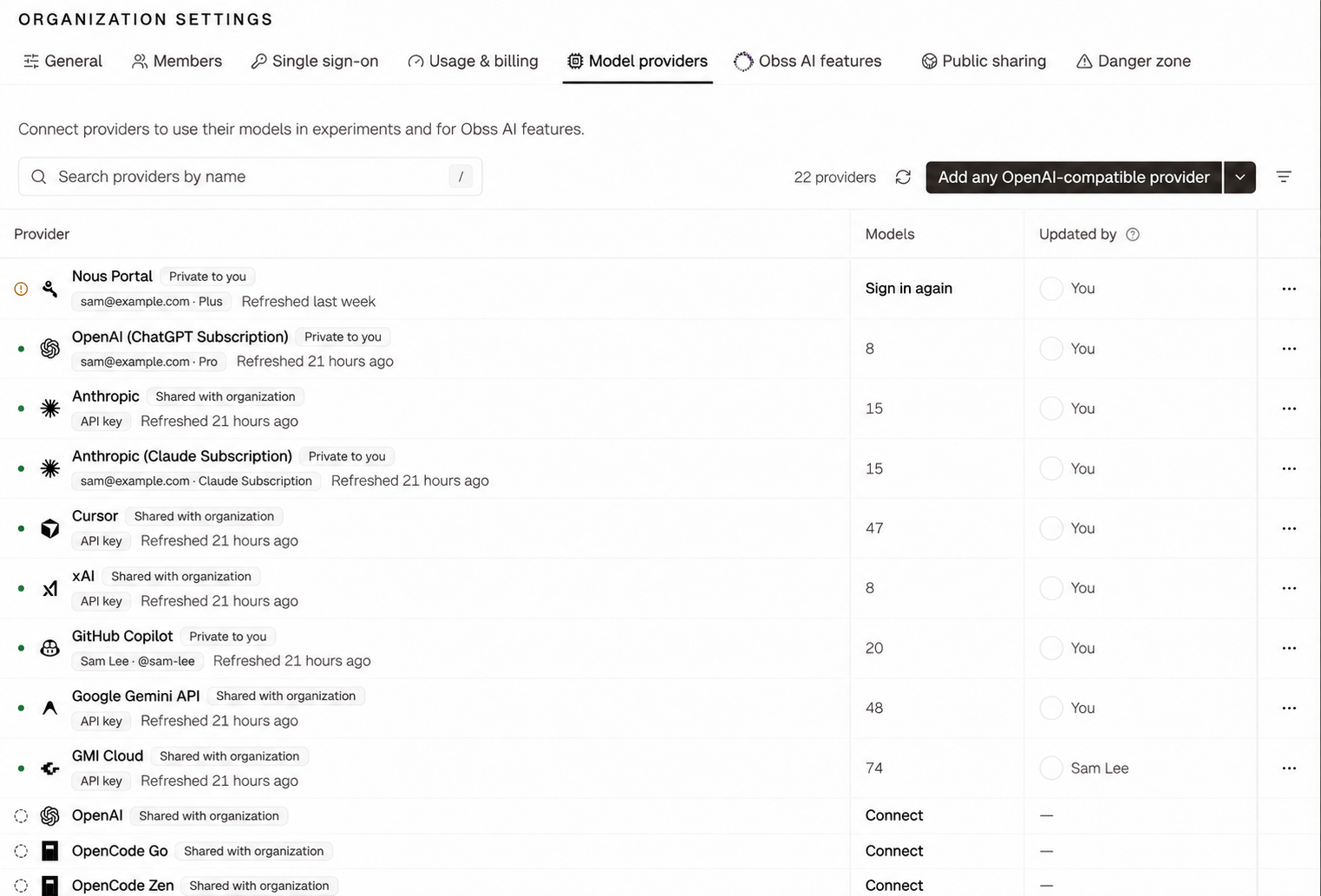
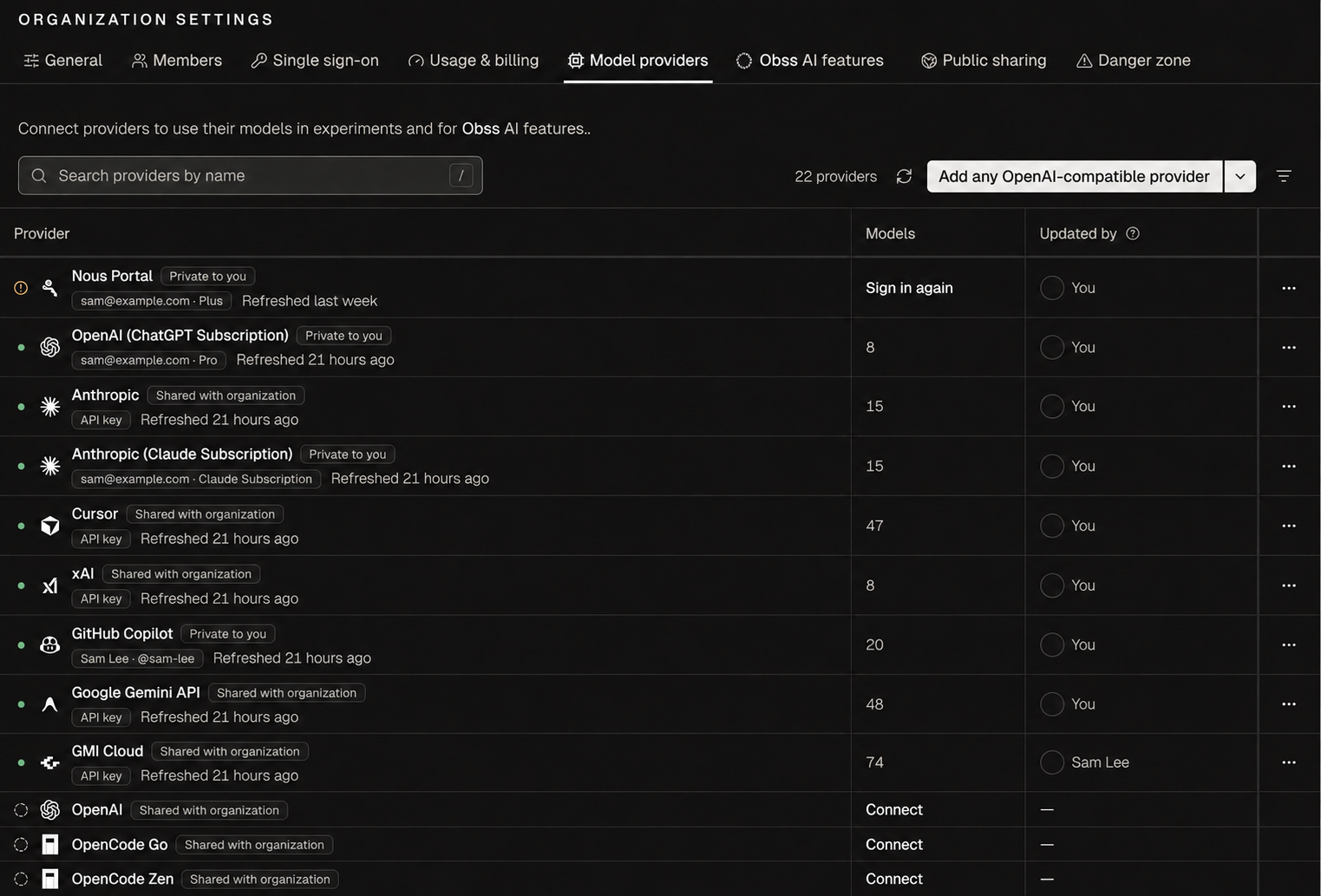
- Status: Connected, Needs attention (the connection is saved but needs a fix, such as Sign in again), or Not connected.
- Access: Shared with organization or Private to you.
Organization providers
Add these under Organization settings → Model providers.Personal integrations
Each member connects their own under Profile → Integrations, and Obss uses the account of the person who starts the work. Profile and API keys lists the plan each needs.Turn off or refresh models
Open a provider to see its model table. Turn a model off to hide it from agents and Obss AI features. Obss reads the model list when you connect or save a provider, and again once it’s a day old. To read it now, select Refresh models on the provider or Refresh all models on the list. A model the provider stops listing drops off until the provider lists it again. A refresh has two parts. First, Obss reads the provider’s list, and the models show in the table in a few seconds. Then it checks which of those models your key can use, which can take longer for a long list. During the checks, the provider shows Refreshing models and the table is dimmed. A new model shows in the table but can’t be selected until its check finishes. A model you could already select stays selectable. If the checks fail, the table keeps the list that the refresh read, and the provider shows what to fix. When a refresh adds or removes models, or a list stops refreshing, the other people who use it get an in-app notice.Set the context window for a model
A model’s context window is how many tokens it can read at once. Obss uses it to size what Evals and Insights read and to set up agents such as Pi and OpenClaw. Custom gateways, such as a self-hosted proxy, often don’t state it. Without a window, Evals and Insights read up to 128K tokens, and Ask Obss can’t use the model.- Open the provider under Organization settings → Model providers.
- In the model table, select the pencil button in the Context column.
- Enter the window in tokens and select Save. Clear removes your value.
Suggested windows from public catalogs
Suggested windows from public catalogs
When OpenRouter or Models.dev lists exactly one window for the same model ID, the table shows Suggested under Not available. The editor fills it in and names the catalog. Check it against your endpoint, which can allow less, then select Save. Obss never uses a suggestion until you save it.
set_model_context_windows to obss project ai apply or manage_project_ai. A null value clears a window:
obss project ai inspect --view models shows each model’s contextWindowTokens, contextWindowSource, and any suggestedContextWindow.
Fix a provider that needs attention
A row shows Needs attention when its connection is saved but can’t run models, for example after a personal sign-in expires. Open the row and follow its fix, such as Sign in again. Until a provider works, every dashboard page shows a banner with the fix.From the CLI and the plugin
The CLI and the plugin read providers and models, refresh lists, turn models on or off, and set context windows. You enter keys and sign in only in the dashboard, so for those steps the CLI and the plugin return a dashboard link.
For example, list the providers that need attention: