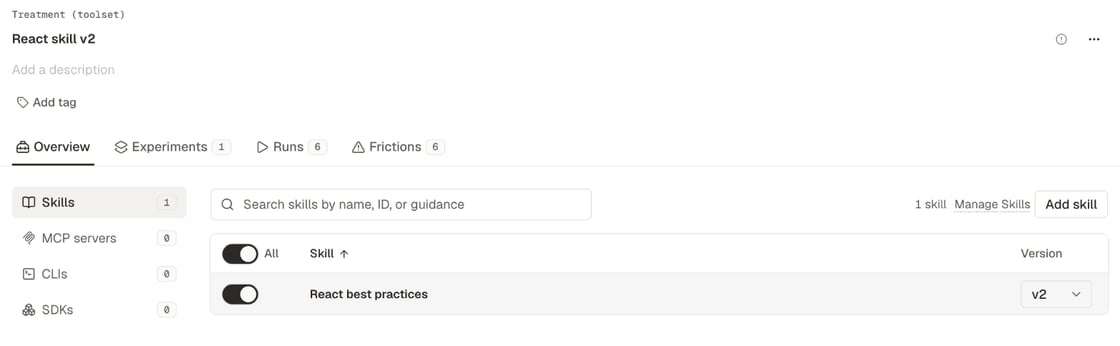
A treatment (toolset) is the set of tools an agent gets in a run: any mix of skills, MCP servers, CLIs, and SDKs, each at a version you choose. Each treatment is one condition in an experiment, and comparing treatments on the same tasks shows which tools help agents do the work. Files and machines attach to the task, and you choose agents at launch, so treatments on the same task differ only in their tools. For a different environment or different starting folders, change the task or use another one.

Treatments every project has

Every project has these read-only treatments, which you can launch but not edit. Each All official treatment appears when the project has at least one official version of that type, and it follows your official versions as they change.

Create a treatment

  1. Open Manage → Treatments (Toolsets) and select New treatment.
  2. Name the treatment.
  3. On the Skills, MCP servers, CLIs, and SDKs tabs, include tools and choose a version of each.
  4. Select Create treatment.
You can also select Create treatment in the message that appears after you create a tool. If a treatment with the same tools already exists, Obss uses it instead of making a copy.
A treatment’s page lists its tools and versions by type, and marks a tool with Newer version available when there is one. Its Runs tab lists every run that launched with the treatment, in every experiment, and its Experiments and Frictions tabs list those runs’ experiments and frictions.
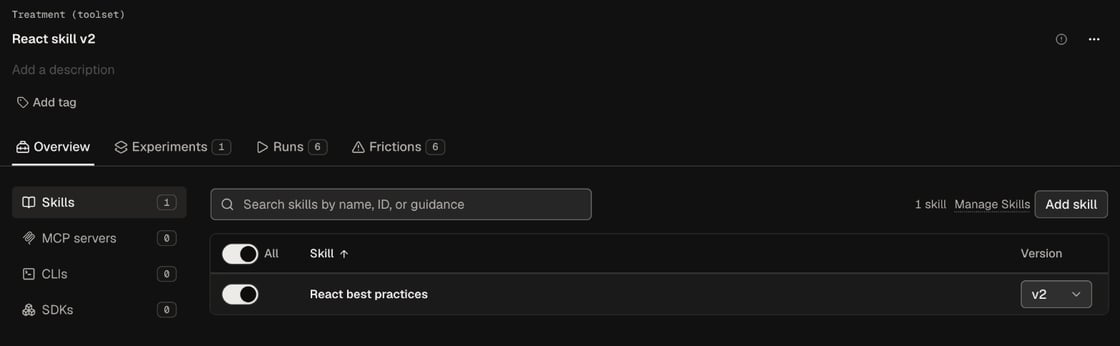
Treatment page with Skills, MCP servers, CLIs, and SDKs in a list beside the attached tools and their versions.Treatment page with Skills, MCP servers, CLIs, and SDKs in a list beside the attached tools and their versions.

Turn off MCP tools

A treatment gives the agent every tool of each MCP server it includes. To test a server without some of them, turn those tools off in the treatment. Tools the server adds later stay on.
  1. Open or start a treatment and select MCP servers.
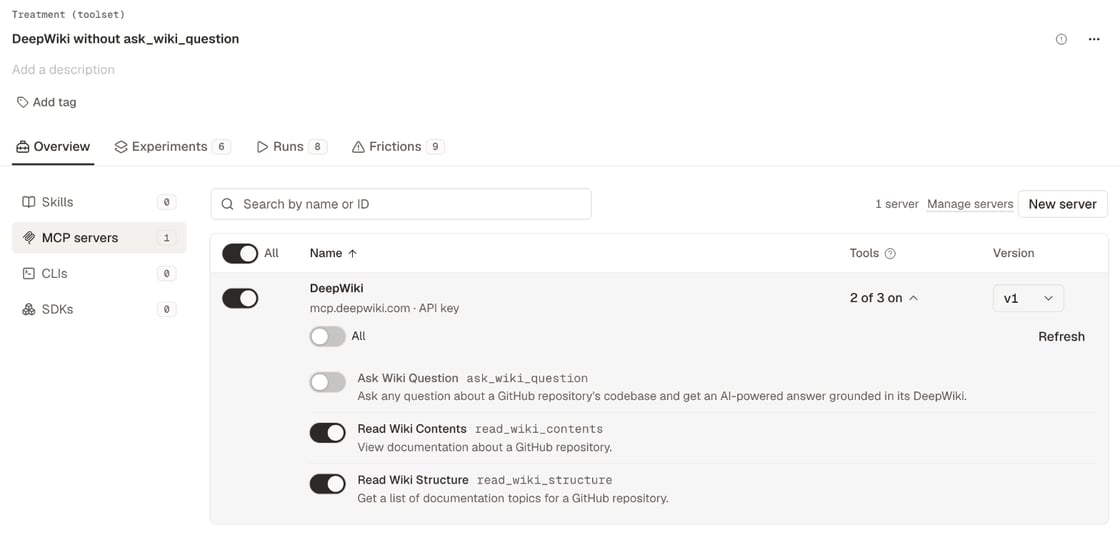
  2. In the server’s row, select the Tools count (for example All 3 on) to list its tools. A treatment that turns tools off opens with them listed.
  3. Turn off the tools the agent must not use. All switches every listed tool, and servers with more than 10 tools add a search box and a Show only off filter.
  4. Save the treatment.
The list comes from Obss’s last check of that server version. With no list, for example for a local server, type a tool’s exact name and select Turn off.
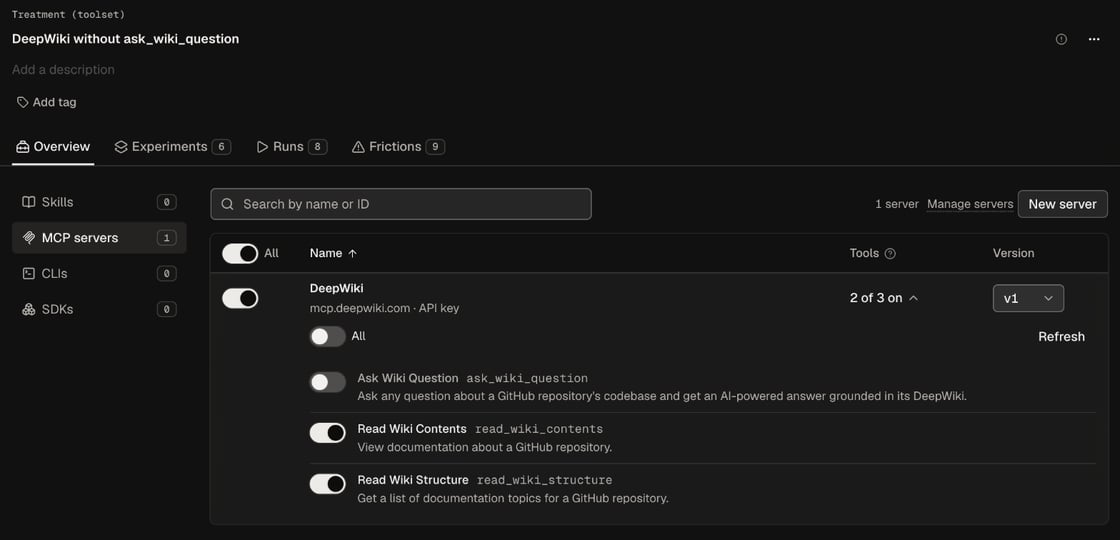
A treatment's MCP servers section. The DeepWiki row says 2 of 3 on, and its three tools are listed under it with ask_wiki_question switched off.A treatment's MCP servers section. The DeepWiki row says 2 of 3 on, and its three tools are listed under it with ask_wiki_question switched off.
To copy a treatment with one more tool turned off, use Test without this tool on the server’s Tools tab. To find the treatments that turn a tool off, set the MCP tool turned off filter on Treatments, or select Off in N treatments on the tool.

How turned-off tools behave

  • You can’t turn off every tool of a server. To give the agent none of its tools, remove the server from the treatment.
  • When you move the treatment to a newer version of the server, the same tools stay off.
  • Two treatments with the same tools, versions, and turned-off tools are the same treatment.
  • Most agents don’t see a tool that is off. Cursor still lists it and refuses each call, so its runs show those calls as failed tool calls.
  • Some servers name their tools in their own instructions. The agent can read the name of a tool that is off there, but it can’t call the tool.
  • Only a tool whose name has 1 to 128 letters, digits, underscores, hyphens, or dots can be turned off. In the tool lists of the CLI and the plugin, canTurnOff tells you.
  • A new name must be in the server’s last tool list, so refresh the list if the server changed. Without a list, for example for a local server, Obss saves the names you give without checking them.
  • disabledMcpTools replaces all of the treatment’s choices: a server you leave out gets all its tools back, and [] turns every tool back on. Leaving out the field keeps the choices.

Keep treatments up to date

A treatment keeps the tool versions you chose. When you save a new version of a tool, Obss asks Update linked treatments? Select Update treatments to move them to the new version, or keep their current versions. Runs that already launched keep the tools the treatment had at launch.

Change one thing at a time

Make each treatment differ from the baseline in one way only. When two tools change at once, you can’t tell which one made the difference. Compare each treatment with the Baseline you choose at launch, usually Raw Agent. The difference in pass rate is the treatment’s lift, and Measure a tool’s impact walks through the whole loop for one tool.

From the CLI and the plugin

Next steps