
Connect Slack
Do this once for each Slack account.1
Open the Ask Obss in Slack dialog
Choose Slack in the Ask Obss header, Ask Obss in Slack on Home or under Automate in the sidebar, or Set up on the Ask Obss in Slack row of Profile → Integrations.
2
Connect Ask Obss
If Ask Obss is not connected, choose Connect Ask Obss and authorize it.
3
Choose a default project
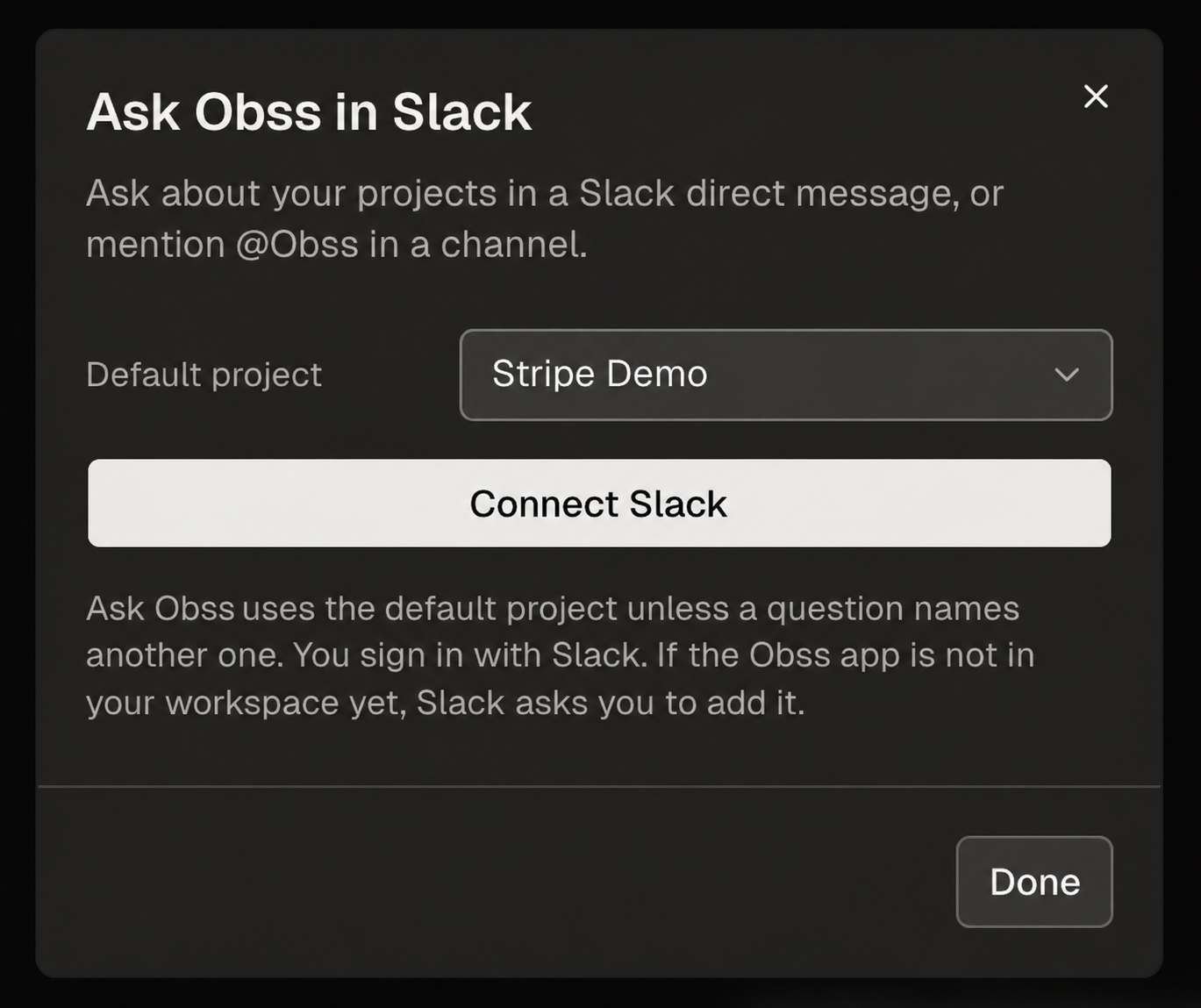
Choose the Default project in the dialog, above the Connect Slack button: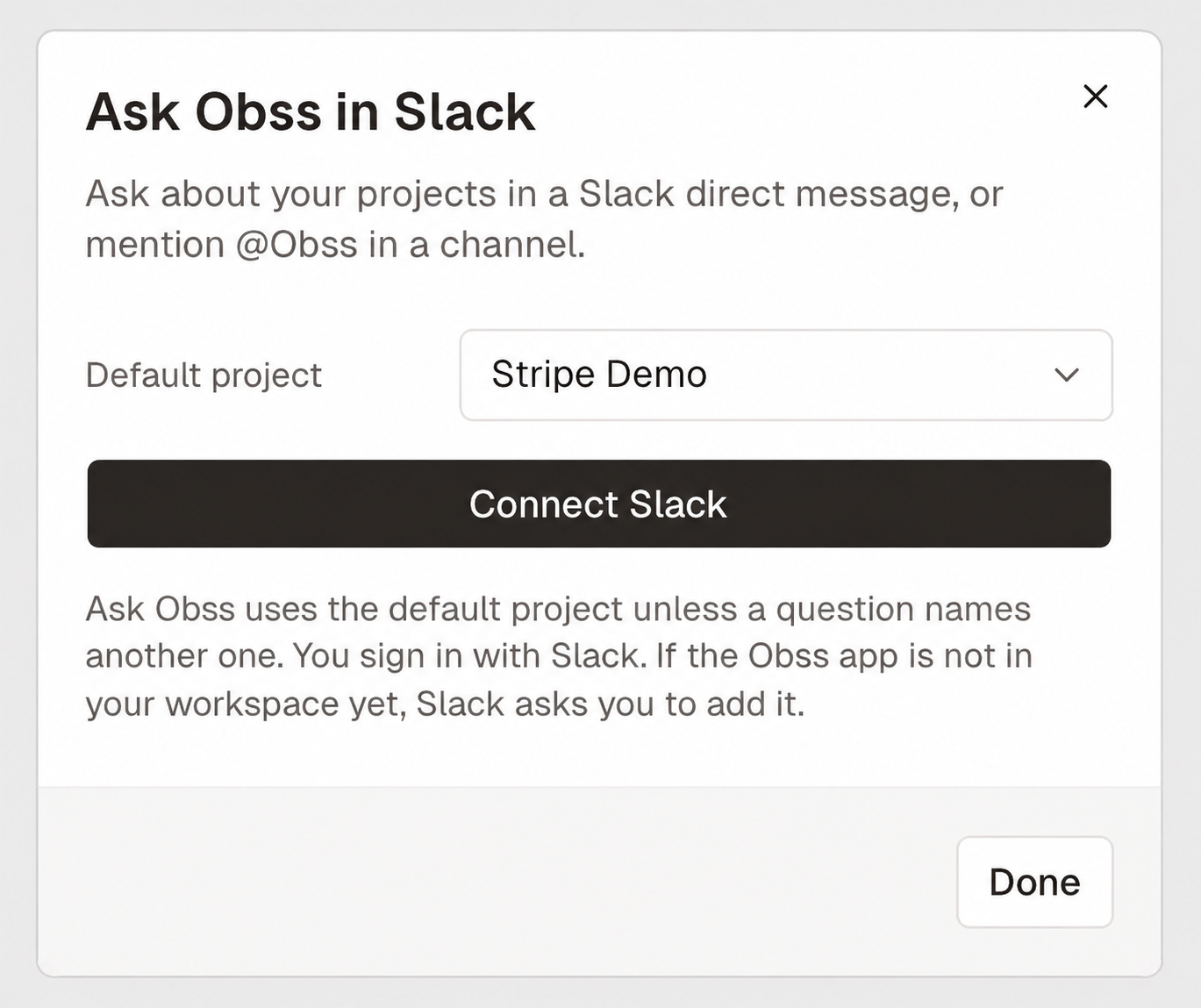
4
Connect Slack
Choose Connect Slack, sign in to Slack, and pick your workspace. If the Obss app isn’t in that workspace yet, Slack asks you to add it. Choose Allow.
- No Ask Obss model: the dialog shows a button to set one up (prerequisites). Do that, then choose Connect Slack again.
- Workspace needs admin approval for apps: Slack sends your admin a request. After they approve it, choose Connect Slack again.
- Not connected yet: if you message Ask Obss first, it replies with a link to connect.
Add the Obss app to one Slack workspace at a time. You can’t add it to a whole Slack Enterprise Grid organization.
Ask in Slack
Find Obss under Agents & tools in Slack. To keep it in Slack’s top bar, open the agents menu at the top of Slack, choose Manage, and add Obss. Its Messages tab starts with suggested questions: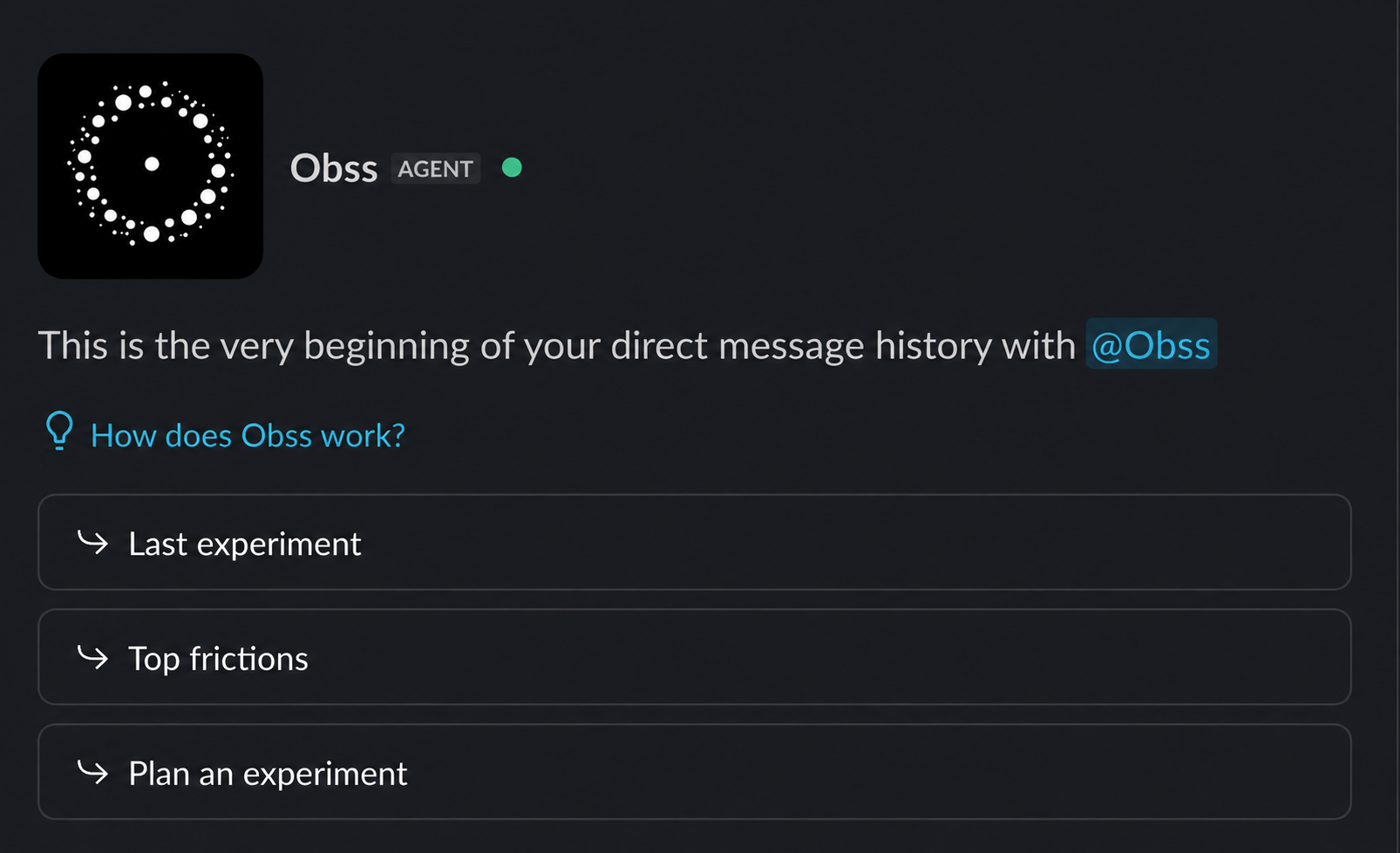
- Each message runs as its sender. Several people can write in one thread, each with their own access.
- A thread keeps its starting project. If your default project has changed, Ask Obss doesn’t answer you in that thread. Start a new thread, or send a direct message.
- Approvals go to your direct messages. Ask Obss asks before the same actions as in the dashboard. For a channel message, the Approve or Deny card comes to your direct messages, and only you can approve it.
- Your access is checked on every message. If you leave the organization, disconnect Ask Obss, or your default project is deleted, Ask Obss stops answering and tells you what to do, in a reply that only you see.
- No shared channels. Ask Obss doesn’t answer in channels shared with other organizations (Slack Connect), because people outside your organization can read them. Use a direct message or a channel in your own workspace.
- Replies are Slack messages. They can include project data, and your workspace’s retention settings apply to them. Everyone in a channel can read Ask Obss’s replies there, so ask about sensitive work in a direct message.
Manage Slack connections
Choose Manage on the Ask Obss in Slack row of Profile → Integrations to see your connected Slack accounts and each one’s default project.- Change the default project: choose another project, then Connect Slack.
- Connect another account or workspace: choose Connect Slack.
- Stop Ask Obss for one account: choose Unlink. Ask Obss then answers that account only with a link to connect.
Next steps
Ask Obss
Learn what Ask Obss can do and which models it uses.
Ask Obss in your editor
Chat with Ask Obss from Zed or a JetBrains IDE.