


Tool types
Every tool is versioned, and each experiment keeps the tool versions it launched with. A tool’s Runs tab lists every run whose treatment gave the agent the tool, in any version and every experiment, whether or not the agent called it. Its Experiments and Frictions tabs list those runs’ experiments and frictions.
Skills
A skill is a folder with aSKILL.md file, plus any other files the agent needs. Open Skills, select Add skills, and drop a folder, a .zip, or a .skill file, or choose From GitHub. One upload can hold several skills.
A skill takes the name in its SKILL.md, which is the name the agent sees, whatever folders it sits in: skills/cloud/onboarding/SKILL.md with name: cloud-onboarding becomes cloud-onboarding. When a repository holds the same skill at two paths with the same files, Obss imports it once. Two different skills with the same name can’t be imported together. Obss names each clash, so you can rename one of the skills or choose a path that holds only one.
To save a new version, open the skill and select Import new version. A skill’s page also has Overview and Files tabs.
MCP servers
An MCP server gives agents your product’s tools over MCP. Add it, then check which tools it offers and how agents use them.Add an MCP server
Open MCP servers, select New MCP server, and choose a Transport:
For a remote server, enter its URL and choose how it signs in:
- Sign in with provider uses OAuth: each member connects their own account, and only that member can use that connection. Some providers need an OAuth app you create with them (MCP server sign-in).
- API key or token sends a key or token in Headers, shared by everyone in the project.
Keys in a URL or an argument
When a server takes its key in the URL (https://mcp.example.com/mcp?apiKey=…), or a local server takes a value such as a database address as an argument, write ${NAME} there instead of the value. Then add NAME with its value under Headers for a remote server, or under Environment variables for a local one.
${NAME}works only in the URL’s path or query, not in the host, the port, or after#.- Obss fills in the value when a run starts and when it checks the server’s tools. The agent never sees a remote server’s value; a local server gets it in the run’s environment.
- In a local server’s shell script, such as
sh -c '…', write"$NAME"or"${NAME}"in double quotes, because single quotes stop the shell from reading the variable.
- Dashboard
- CLI
- Plugin (MCP)
In the server’s URL, write
https://mcp.example.com/mcp?apiKey=${EXA_API_KEY}. Under Headers, add EXA_API_KEY and enter the key. Select Save.See an MCP server’s tools
An MCP server’s Tools tab lists the tools the server offered at Obss’s last check: each tool’s name, description, parameters, and the server’s own hints, such as Read-only or Destructive. In the MCP servers list, the Tools column shows the count and opens the tab. Obss checks a remote server’s tools when you save a new version, connect your account to it, open the Tools tab more than a day after the last check, or ask for a check:- Dashboard
- CLI
- Plugin (MCP)
Open the MCP server, select the Tools tab, and select Refresh. Or, in the MCP servers list, open the server’s ⋯ menu and select Refresh tools.
See how runs use each tool
The Tools tab also shows how agents used each tool. The count at the top is the number of runs whose treatment included this version.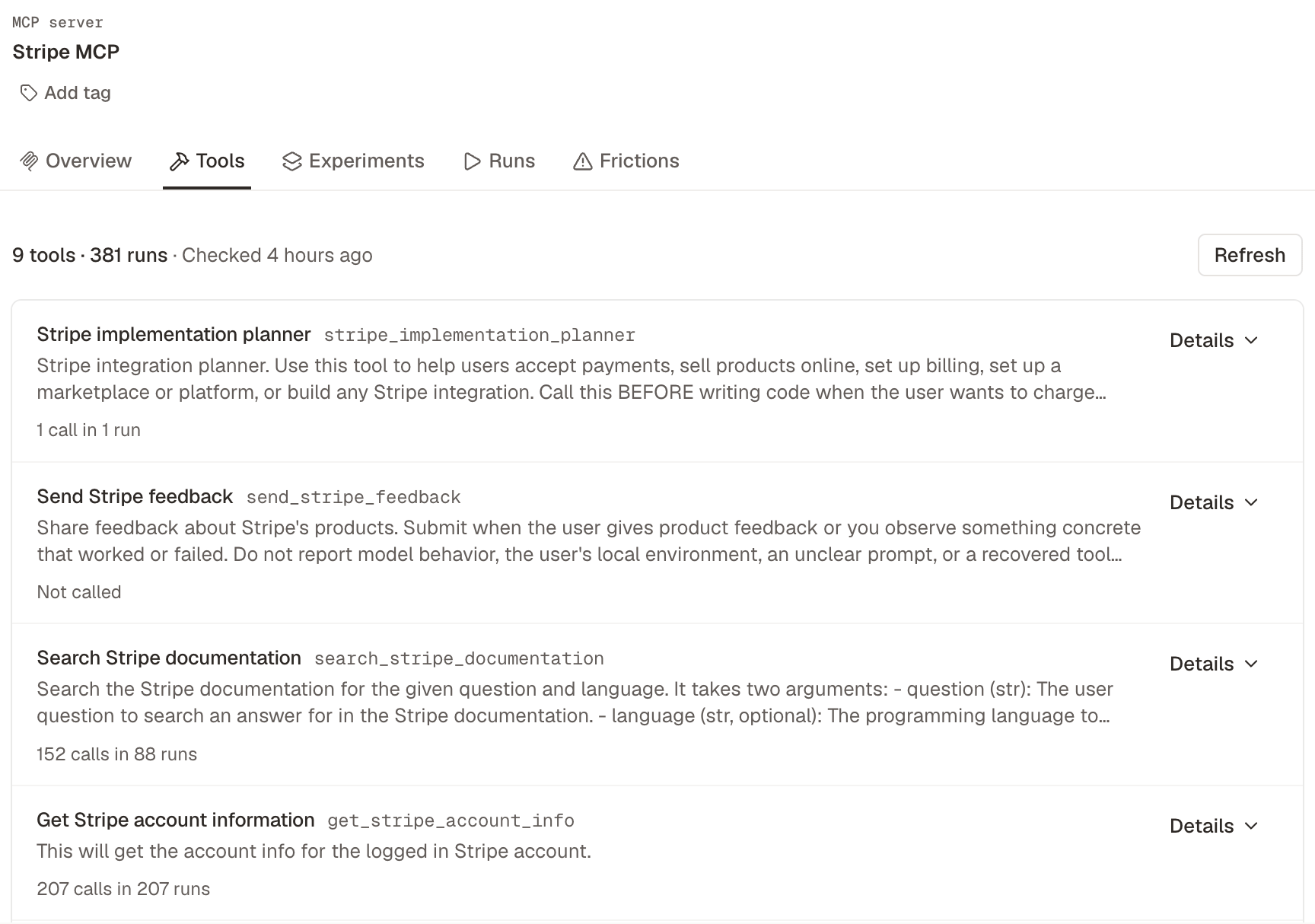
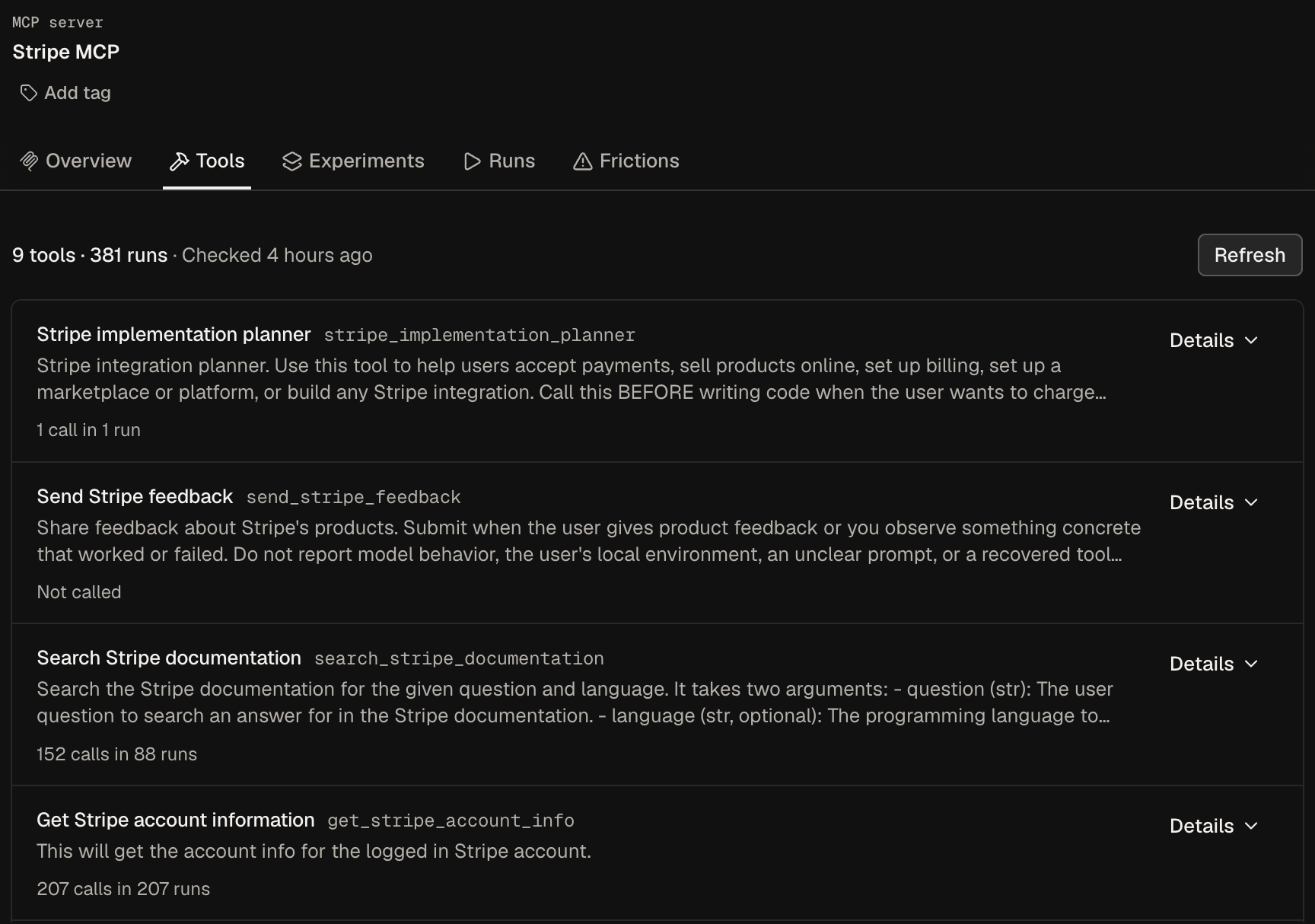
Counts appear once a run of this version is processed. They include failed calls, because Obss doesn’t record whether a call succeeded, so the tab shows no error rate. They also include calls where the agent changed a dot in the tool name to
_ or -. A long list adds search, Show only never called, and Show only off in a treatment.
- Dashboard
- CLI
- Plugin (MCP)
Open the MCP server and select the Tools tab. To see another version, choose it in the version list first.
Test without a tool
To find out how much one MCP tool helps, run a treatment with the tool and the same treatment without it. Test without this tool makes the second treatment for you. Then launch an experiment with both.- Dashboard
- CLI
- Plugin (MCP)
- Open the MCP server and select the Tools tab.
- Select Details on the tool.
- Select Test without this tool, then a treatment that includes this version of the server.
Saved header values and the server address
Saved header values, such as the API key in Headers, and the Client secret of your own OAuth app are bound to server addresses that a person chose. A launch, a run, a tool check, and Connect send them only to a bound address (Connect sends the secret to the sign-in server that address names). So a key can’t reach an address no person chose, such as one an AI assistant saved through the CLI or the plugin. A person binds values in the dashboard in one of three ways:- Save the server with values. Obss binds them to the server’s address after the save, and a renamed header keeps its value.
- Save the server at a new URL. Obss binds all saved values to the new address. The old one stays bound, so you can compare two versions of one server at two addresses in one experiment.
- Select Refresh on a version’s Tools tab. Under Refresh, the tab shows Binds the saved values to … with the full address. Obss binds the values to it, then checks the tools.
If you expect the address, open the Tools tab and select Refresh. If you don’t, save a new version of the server with the correct address instead.
CLIs and SDKs
Open CLIs or SDKs, select New CLI or New SDK, and set these fields:- Install: a package manager and package, or Custom for a shell install command. It runs while Obss builds the machine, before variables exist, so use a post-install command for anything that needs one.
- Post-install commands (CLIs only): commands that run at the start of every run, after the machine’s setup commands and before the agent starts. They can read the tool’s variables as
${NAME}, for example to sign the CLI in. - Variables: values the post-install commands and the agent need, such as an API key. In the tool’s treatments, they replace a machine variable with the same name.
PATH. A shell call that runs one of them counts as use of the CLI in Run details. One package can install several names; for example, @brightdata/cli@0.4.1 installs bdata and brightdata.
The CLI and the plugin use the same
commands field and rules, and their result names every executable that counts as use of the CLI.
Import from GitHub
Import Skills and Files from a public GitHub repository instead of uploading them.1
Open the GitHub import
In the add dialog, choose From GitHub.
2
Choose the repository
In GitHub source, type a repository name,
owner/name, or owner/ to list one owner’s public repositories, and pick one from the list.3
Choose a branch, tag, or commit
In Branch, tag, or commit, pick a ref, or leave it empty for the default branch (first in the list). In a repository with many refs, type the start of a branch or tag name to find it.
4
Choose a path
In File or folder path, pick a path, or leave it empty to import the whole repository. For skills, the list shows each skill folder and each folder that holds skills, with its skill count, and the dialog says how many skills your selection imports.
5
Import
For skills, turn on Mark as official to make each imported skill its official version. Select Import, and Obss saves a snapshot at the resolved commit.
/, such as feature/docs, resolves the same way it does on GitHub. Every field also accepts typed text, such as a commit SHA or a path in a large repository.
To get later changes, open the skill or folder and select Check for updates. A skill gets a new version when its content has changed, a folder takes the newer snapshot, and finished runs keep the content they used.
From the CLI or the plugin, obss github browse and Browse public GitHub repositories (browse_github_source) find the same repository, ref, and path without saving anything. Pass the choice to obss resources apply or author_resource as source.repository, source.ref, and source.path.
Add the values a tool needs
Some tools need a value, such as an API key or your own account sign-in, before a run can use them. You add these values only in the dashboard, and the CLI and the plugin return a link to the page.- A tool with an empty required value shows Needs values in its list, and its box on Tools counts how many need values.
- An MCP server that uses Sign in with provider shows Connect account until you connect your own account.
Official versions
An official version is the one version of a tool that you declare part of your product’s interface. Turn on Mark as official on a tool’s page, or when you import skills. The read-only treatments All official skills, All official MCPs, All official CLIs, and All official SDKs collect them, so you can measure your whole interface at once. Each one appears when the project has at least one official version of that type.Attach tools to a treatment
After you create a tool, Obss offers Create treatment to make a treatment with it. You can also include it, at a version you choose, in any treatment under Manage → Treatments (Toolsets) (create a treatment). When you save a new tool version, Update linked treatments? lets you move those treatments to it.Approvals during runs
During a run, every tool call is approved automatically, so agents can call every tool in the treatment, including MCP tools marked destructive (destructiveHint) or as needing a person’s approval (_meta["anthropic/requiresUserInteraction"]). Give the task data that the agent can safely change or delete.
Approval marks outside Obss
Approval marks outside Obss
Outside Obss, Claude Code in headless mode (
claude -p) refuses a tool marked anthropic/requiresUserInteraction, because no person can approve it. Keep the mark on tools whose actions can’t be undone, because it protects people who use your server interactively.Delete a tool
You can’t delete a tool version that a treatment still uses, and the delete preview says why, for example “Remove this skill from treatments before deleting it.” Remove a skill from those treatments first, or delete them in the same deletion. An MCP server, CLI, or SDK version that an experiment used can’t be deleted, even after you remove it from every treatment. If a schedule launches an experiment that can’t launch again after the deletion, the deletion pauses that schedule, and the delete dialog names it first.From the CLI and the plugin
The CLI and the plugin name the tool typesskill, mcp, cli, and sdk.