
Custom agents are in private beta. Email support@obss.app to enable them for your organization.
- Evaluate an ACP agent that isn’t built in.
- Test your own agent on your tasks before you publish it.
- Compare an agent’s ACP version with the built-in agent.
An agent that runs its tools on its own computer, such as Ask Obss, can’t use the run’s files, services, or tools, so give it tasks that don’t need them (Run Ask Obss as a custom agent).
Who can see a custom agent
Your organization owns each custom agent, and every project lists it under Manage → Agents with a Custom tag. It’s on in the project where you created it and off elsewhere until you turn it on. Every run uses the same environment variable values, in every project and for every member.Connect a custom agent
- Dashboard
- CLI
- Plugin (MCP)
- Open Manage → Agents and select Connect custom agent.
- Enter a unique name of 120 characters or fewer in Name this agent. Optional: select Add a description.
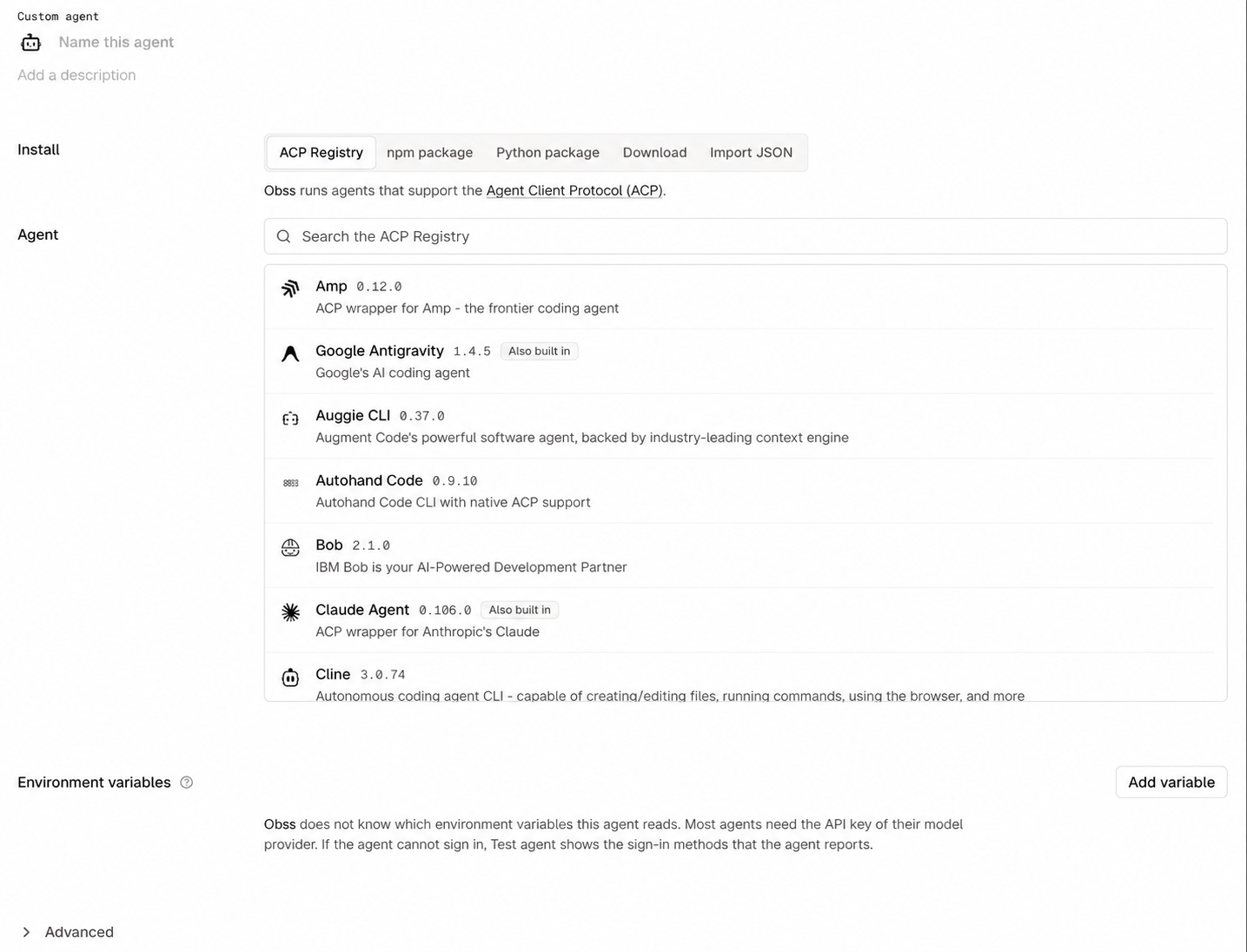
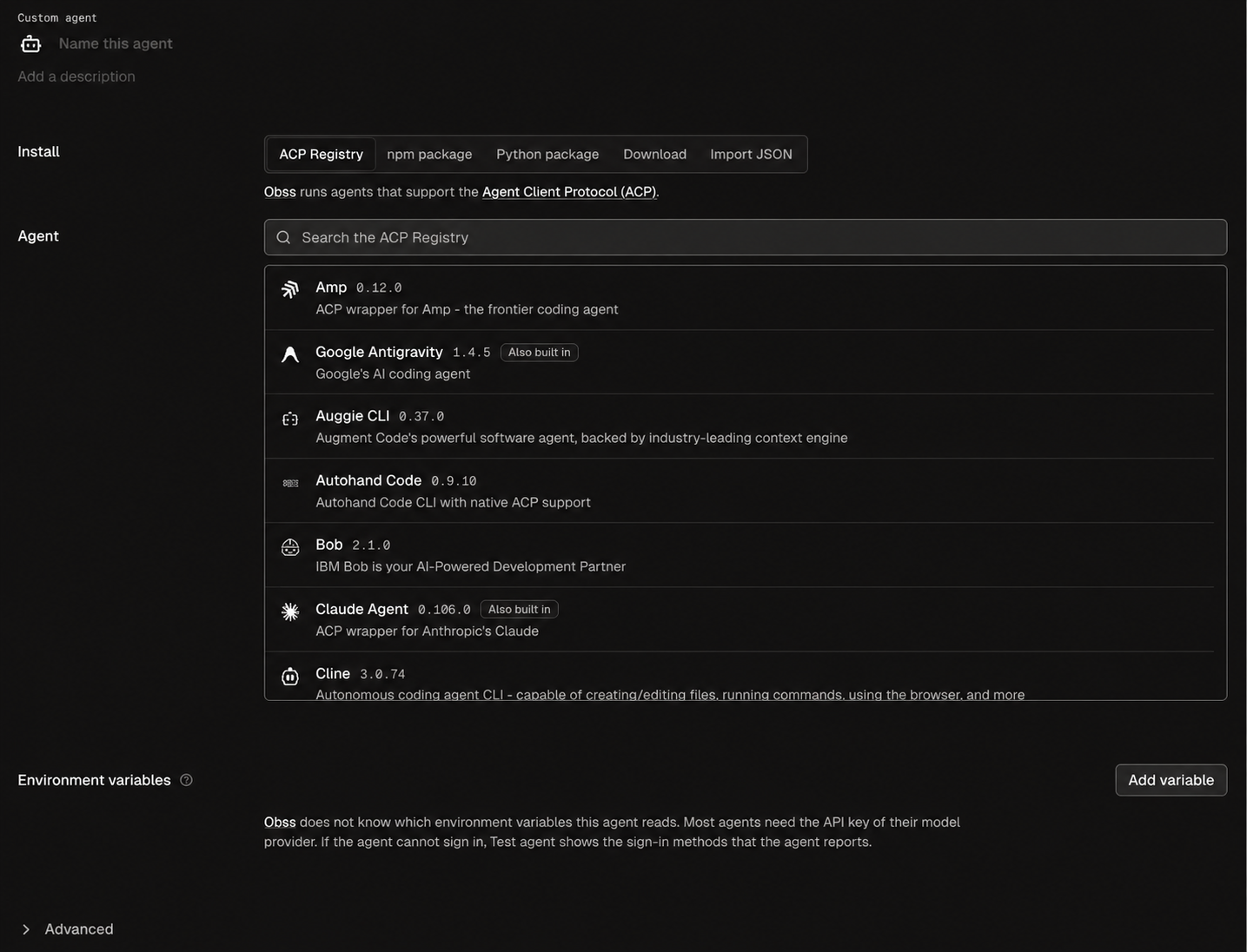
- Under Install, choose ACP Registry, npm package, Python package, Download, or Import JSON (explained below).
- Under Environment variables, select Add variable for each value the agent reads.
- Select Connect agent, then test the agent on the page that opens.
ACP Registry
Under Agent, search the registry by name, ID, or description. Each row shows the agent’s version and description.- Obss pins the agent’s current version when you choose it, and runs use that version until you change it. When the registry has a newer version, the agent page shows Update to. Select it, then select Save changes.
- The registry can pause an agent with a problem, and paused agents aren’t listed. If you choose one from the CLI or the plugin, the command fails and shows the registry’s reason. Choose another agent, or install it as a package.
- For agents that Obss recognizes, it adds the variable names the agent usually reads, with empty values. Remove the ones you don’t need. For example, goose adds
GOOSE_PROVIDERandGOOSE_MODEL, with a note to set the API key of the providerGOOSE_PROVIDERnames, such asANTHROPIC_API_KEY. - Without your own description, Obss uses the registry’s.
- An Also built in tag means Obss has a built-in version. Add the registry version only to compare the two.
npm package, Python package, or Download
Use these for your own agent or one that isn’t in the registry. The CLI and the plugin call all three themanual source.
Then enter the Arguments, separated by spaces, with quotes around any argument that has spaces.
- Packages need an exact version, which keeps results comparable. If the package or version doesn’t exist, the install fails with the npm or uv error.
- Obss checks a download against its SHA-256 (64 hexadecimal characters) before running it.
- A
.tar.gz,.tgz,.tar.bz2, or.zipdownload is an archive: Obss extracts it, and Command is the path to run inside it. Any other download is a binary that Obss saves under the Command name and runs.
Import JSON
Paste a standard ACP Registryagent.json, or select Choose file, to test an entry before you publish it.
- The entry needs an
id,name,version, and a Linux x64 distribution:npx,uvx, orbinarywith alinux-x86_64target and its SHA-256. - A
localcommand can’t run, because nothing is preinstalled in a run’s machine.
Set environment variables
An ACP agent can’t sign in through a browser during a run, so give it its credentials, such as its model provider’s API key, as environment variables (up to 64).- Names use capital letters, digits, and underscores, and start with a letter. Don’t use names Obss sets for the run, such as
PATH,HOME, and anything starting withOQO_. - A saved name doesn’t change. To rename a variable, remove it and add a new one.
- Values are secret, and you enter them only in the dashboard. The CLI and the plugin return a dashboard link for each value instead. Every run of the agent can read them, and Obss removes them from each run’s saved recorded work.
Test agent
Test agent checks that the agent installs, starts, and answers. It uses one run (Uses 1 run) with:- the Agent check task, which asks the agent for its name and what it can help with, in one sentence
- the Agent default model
- the Raw Agent treatment (no tools)
- Evals and Insights off
- Dashboard
- CLI
- Plugin (MCP)
On the agent page, under Status, select Test agent.
Statuses
The status shows on the agent page, Manage → Agents, and New experiment. When two apply, the higher one in this table wins.
Any finished run with the current settings, in any project, updates the status, except a cancelled run or one where the agent refused the treatment’s MCP servers. Saving a change to the settings or a value resets it to Not tested. Open latest run opens the run that set the status, and the CLI and the plugin also give the agent’s reported version and the kinds of MCP server it accepts.
When the agent needs attention
Status shows the step that failed, the agent’s own error, and the fix, with a link such as Go to Models to the right section or the run. When the agent asks for a sign-in, the page lists its sign-in methods, which often name the variable it reads.Confirm the agent’s models
Obss learns the agent’s models from each run, so Models has no Refresh models button.- Agent default is always first. Obss doesn’t choose a model, so the agent uses its own default. Some agents read the model from a variable, such as
GOOSE_MODELfor goose. - After a run, the list shows each model the agent offered. Turn on the ones you want to launch with. You can’t add a model that the agent doesn’t offer.
An agent with no model option has only Agent default. Custom agents have no effort setting.
Run a custom agent in an experiment
New experiment lists custom agents after the built-in ones, with the Custom tag and, unless the agent is Ready, its status. Each model you turned on is a choice. Selecting New experiment on the agent’s page opens an experiment with this agent on Agent default beside the built-in agents, for comparison. To run only this agent, select Clear beside the agent search and select it again. Nothing runs until you select Launch.- New experiment is the page’s main action once the agent is Ready. Before that, Test agent is the main action.
- The page has no New experiment while the agent is off in the project (turn on In this project) or has no models turned on (follow Go to Models).
- An experiment that you open another way doesn’t select a custom agent for you. When you select one, it starts on Agent default.
A launch from the CLI or the plugin must name its agents: find the model IDs with
obss catalog list --kind agent --projection full (plugin: inspect_catalog with kinds: ["agent"]).
Before each run, Obss copies the treatment’s skills into the agent’s skills folder, ~/.agents/skills by default. If the agent uses another folder, set Advanced → Skills folder on the agent page.
Read a custom agent’s results
Results work as for a built-in agent, with these differences:- Models show under the agent’s own names, and Agent default adds the reported model, such as Agent default: opus.
- An answer that ends early shows a note, such as “Stopped early: the agent reached its token limit.” Evals score it as usual.
- Tokens and cost show only when the agent reports them. Otherwise the Runs cost cell is blank, because Obss never estimates a custom agent’s cost.
- When the agent fails before it answers, the run status says “The agent failed before it answered.” A banner shows the failed step, the agent’s error, and the fix, with a link such as Go to Models. Evals don’t score the run, and as an errored run it’s left out of the pass rate and doesn’t use your run balance.
Where a cost comes from
Every cost names its source, beside Cost on a run or on hover in the Runs list.
A Matrix cell whose runs mix sources shows Mixed sources, with the mean cost per source rather than one combined value.
Change or remove a custom agent
Change settings on the agent page and select Save changes. You can also change how it installs: another install choice, another ACP Registry agent, or a newer version. Past runs keep their launch settings, and the status resets to Not tested.- Dashboard
- CLI
- Plugin (MCP)
- Open the agent page.
- Open the ⋯ menu and select Remove.
- Select Remove agent.
From the CLI and the plugin
The CLI and the plugin offer the same operations, except that variable values are set in the dashboard: a create or update returns a link for each one.
An update or removal needs the current
revision from obss project ai inspect as expectedRevision. If the revision is stale, the command changes nothing. To change how an agent installs, send update_custom_agent with a new source.